Git commands
What actually moves when you git checkout a branch
git checkout: the Swiss army knife that moves HEAD
How to use this page
- sliderDrag it to move the graph from before the command to after it.
- ▶ / ❚❚Play or pause the command, start to finish, on a loop.
- Before · AfterJump straight to either end.
- ← → · spaceStep through a multi-step command; space toggles Before / After.
- APlay or pause from the keyboard (the page opens playing). Any manual input takes over.
- hoverA commit shows its message, author, date and parents, with its history highlighted.
- clickCopies the commit sha.
- ctrl + wheelZoom around the cursor (pinch on a trackpad). Double-click resets the view.
- EscStop playback, reset the view, close this menu.
- shareThe Share button copies a link to this graph, copies it as an image, downloads PNG/SVG/page, or posts it. #before, #after or #step=N in the link pins the state.
The Animated Git Cheat SheetFree · Customize it · Download it · Print it
git-sim visually simulates any Git command in your own repos - from your terminal, IDE, or AI.
Table of Contents
- Introduction
- What is git checkout?
- Watch it happen
- Before and after
- What checkout refuses to do
- Is it safe?
- Useful forms
- How to undo it
- Try it on your repository
- Common questions
- Summary
- Next steps
- Related commands
Introduction
git checkout has been Git's general-purpose "put me somewhere else" command since the beginning. It switches branches, but it also creates them, restores individual files, and detaches HEAD onto a bare commit. That overload is why Git 2.23 introduced switch and restore to split the job in two. checkout still works everywhere, and most of us still type it out of habit.
In this article, we'll:
- Watch
git checkout featuremoveHEADon a small repository - Look at what happens to the files on disk when it does
- Cover what Git refuses to do and why, and how
checkoutrelates toswitch
What is git checkout?
git checkout <branch> does two things. It writes ref: refs/heads/<branch> into .git/HEAD, so that HEAD now points at that branch. Then it updates your working directory and staging area so that the files match the commit at the tip of that branch.
The first part is a one-line file edit. The second is the part that takes time in a big repository and the part that can conflict with your uncommitted changes.
Watch it happen
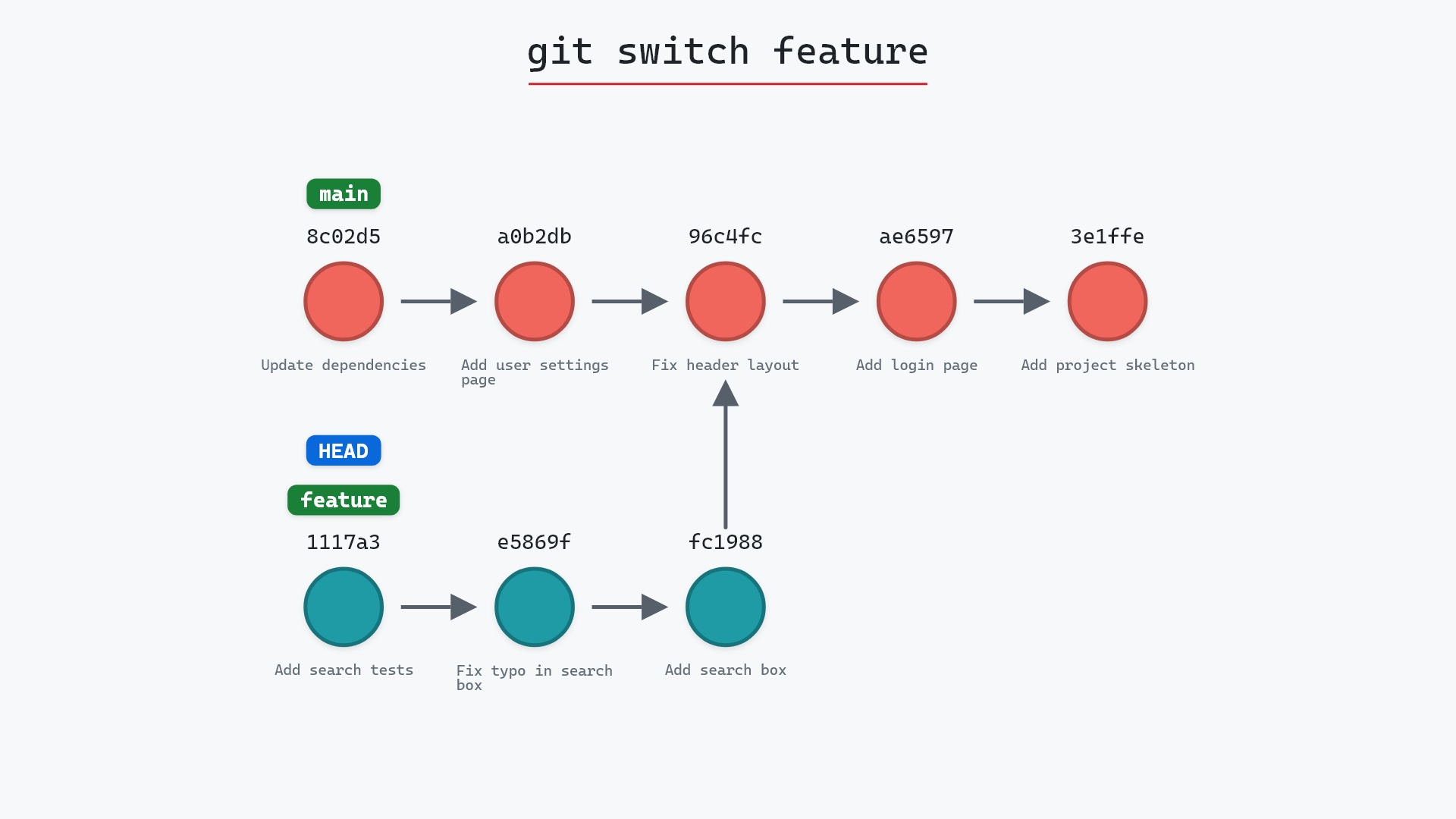
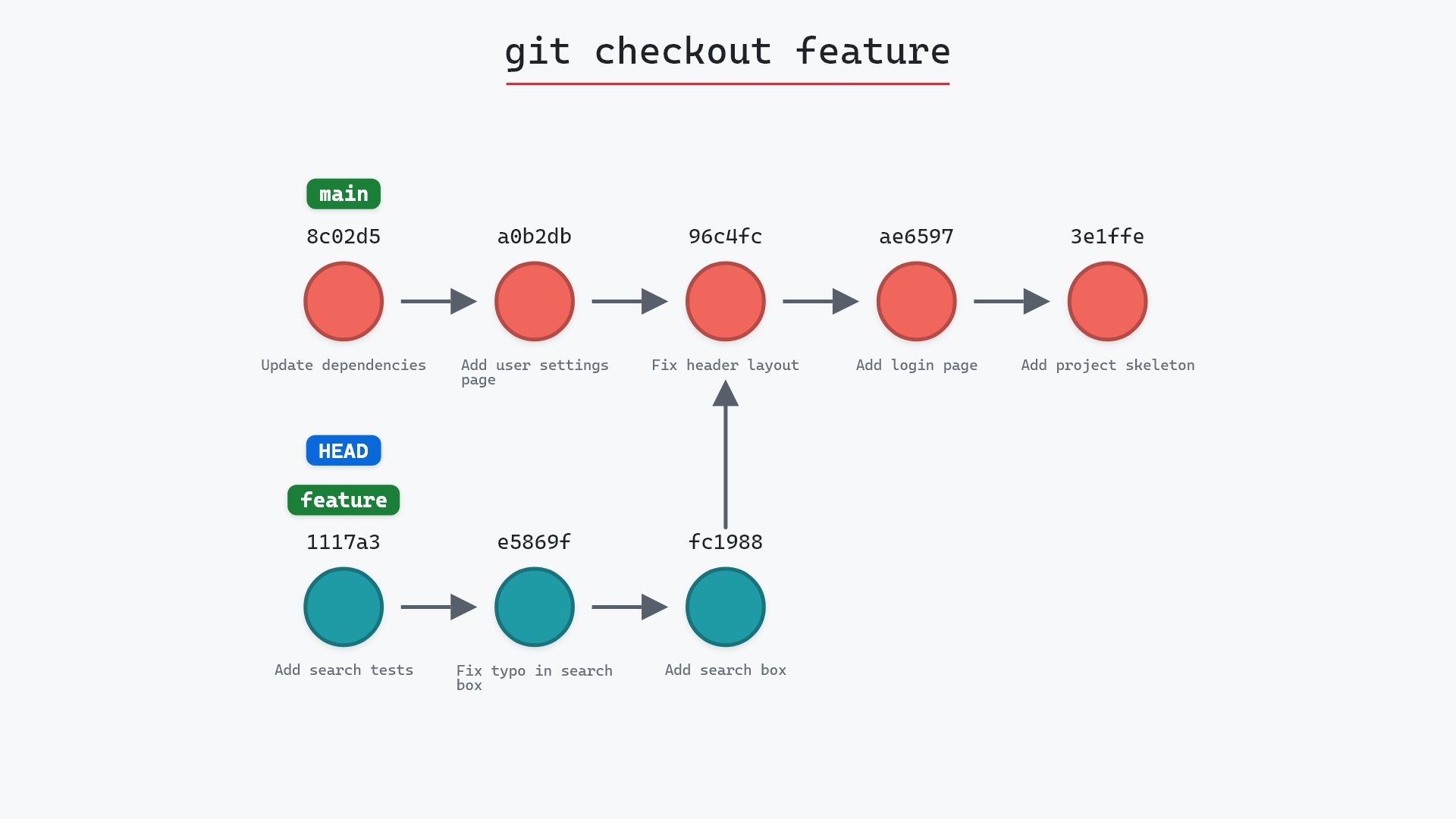
Our sample repo has main checked out, feature has its own commits. Here's git checkout feature:
- Before:
HEADis attached tomainat8c02d5b.featurepoints at1117a34, three commits along its own line. - Git attaches
HEADtofeature, so it now points at1117a34, the tip of the feature branch. maindoesn't move, and no commits are created or deleted. Only the pointer has changed.
Before and after
Between the two graphs the only difference is which branch HEAD is attached to. On disk the difference is bigger: search.html and test_search.py now exist, because feature has them and main doesn't, and git status reports feature as the current branch.
The raw git output, if you want to read along in text
git log --oneline --graph --all
before
* 1117a34 (feature) Add search tests
* e5869f0 Fix typo in search box
* fc19889 Add search box
| * 8c02d5b (HEAD -> main) Update dependencies
| * a0b2db3 Add user settings page
|/
* 96c4fc2 Fix header layout
* ae65976 Add login page
* 3e1ffe4 Add project skeleton
* 4114b2c Initial commit
after
* 1117a34 (HEAD -> feature) Add search tests
* e5869f0 Fix typo in search box
* fc19889 Add search box
| * 8c02d5b (main) Update dependencies
| * a0b2db3 Add user settings page
|/
* 96c4fc2 Fix header layout
* ae65976 Add login page
* 3e1ffe4 Add project skeleton
* 4114b2c Initial commit
what git printed
Switched to branch 'feature'What checkout refuses to do
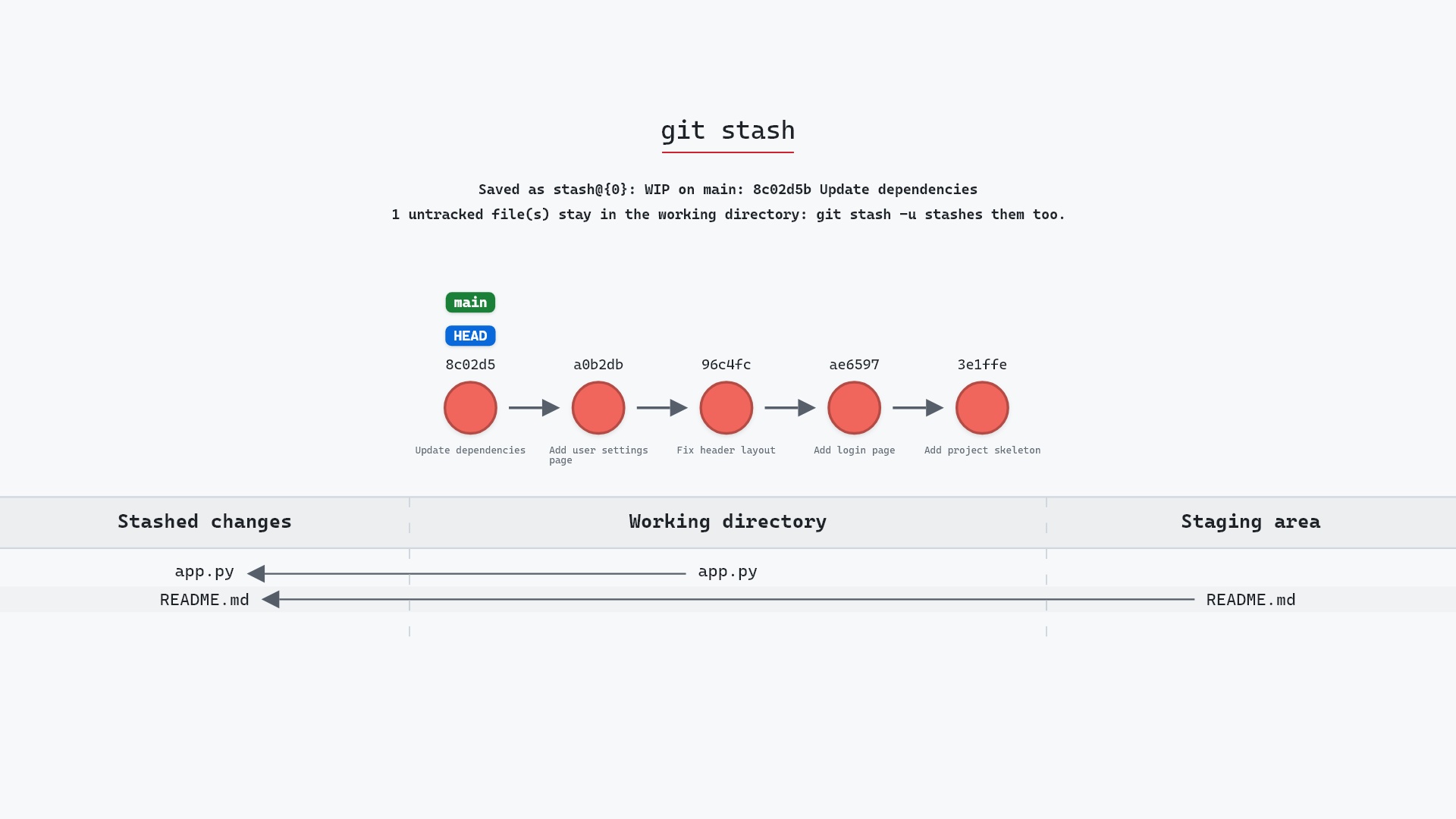
If you have an uncommitted change to a file that differs between the two branches, checkout stops with "Your local changes would be overwritten by checkout" and does nothing. That refusal is the safest thing about the command. The three ways forward are to commit the change, git stash it, or throw it away with git restore <file>.
Changes to files that are identical on both branches come along for the ride untouched. That surprises people the first time, but it's usually what you want: you started an edit on the wrong branch, and switching carries it to the right one.
git checkout with a file name, meaning to switch branches, and silently wipe an hour of edits, because checkout <file> restores the file instead. A tool that shows you what a command is about to do before it does it would have caught every one of those.
Is it safe?
Safe git-sim pre-flight
Switches to 'feature'.
Switching branches with a clean working directory is completely safe. The danger in checkout is the other form, git checkout -- <file>, which discards edits to a file with no confirmation and no undo. That is the form git restore replaced.
Useful forms
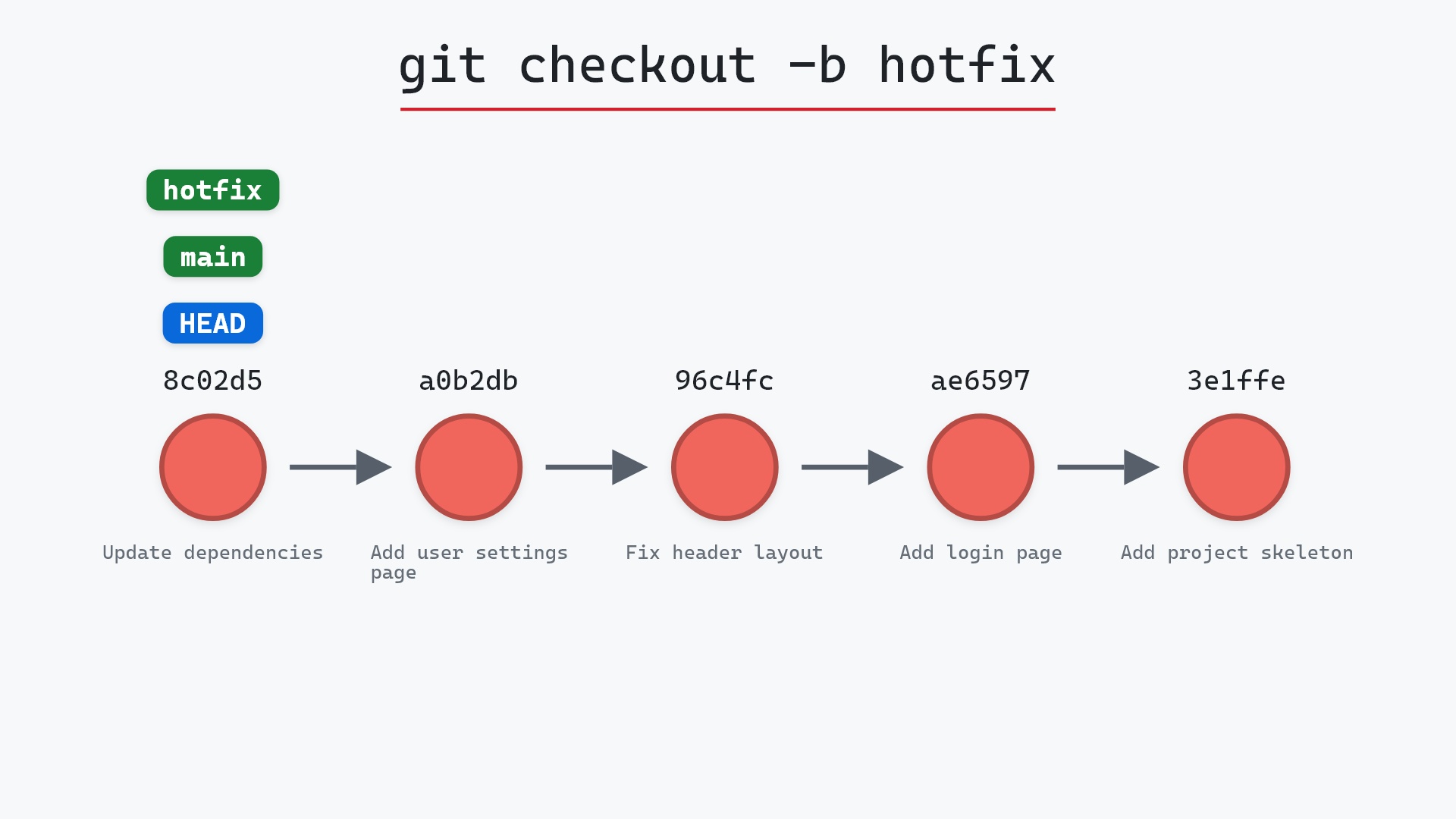
git checkout -b <name>creates a branch and switches to it. Its own page.git checkout <sha>movesHEADto a commit directly, leaving it detached.git checkout -- <file>discards working directory changes to a file. Prefergit restore <file>now.git checkout -switches back to the previous branch, likecd -. The git checkout documentation covers the rest of its options.
How to undo it
Switch back:
git checkout main
Nothing was created or destroyed, so undoing a branch switch is just switching again.
Try it on your repository
pip install git-sim
git-sim checkout feature
git-sim shows where HEAD would land and lists the uncommitted changes that would block the switch, before you run it.
Common questions
What does git checkout do?
Given a branch name, it points HEAD at that branch and updates your working directory and staging area to match the branch's tip commit. Given a file name, it restores that file from the index or a commit instead.
What is the difference between git checkout and git switch?
switch only switches branches. checkout also restores files and can detach HEAD. Git added switch and restore in 2.23 so each job has one command, but checkout still does everything it used to.
Can I checkout a branch with uncommitted changes?
Yes, as long as none of the changed files differ between the two branches. If one does, Git refuses. Commit, stash, or discard the change first.
What is detached HEAD?
The state where HEAD points at a commit directly instead of at a branch. git checkout <sha> puts you there. Commits made in that state belong to no branch until you create one.
Summary
In this article, we watched git checkout move HEAD from main to feature, saw that the branches themselves stayed put while the files on disk changed, and covered what the command refuses to do and why switch was split off from it.
Next steps
git switch is the same operation with fewer ways to hurt yourself. git stash is what to reach for when checkout refuses to switch.
Related commands
- git switch, the modern branch switcher
- git checkout -b, to create and switch at once
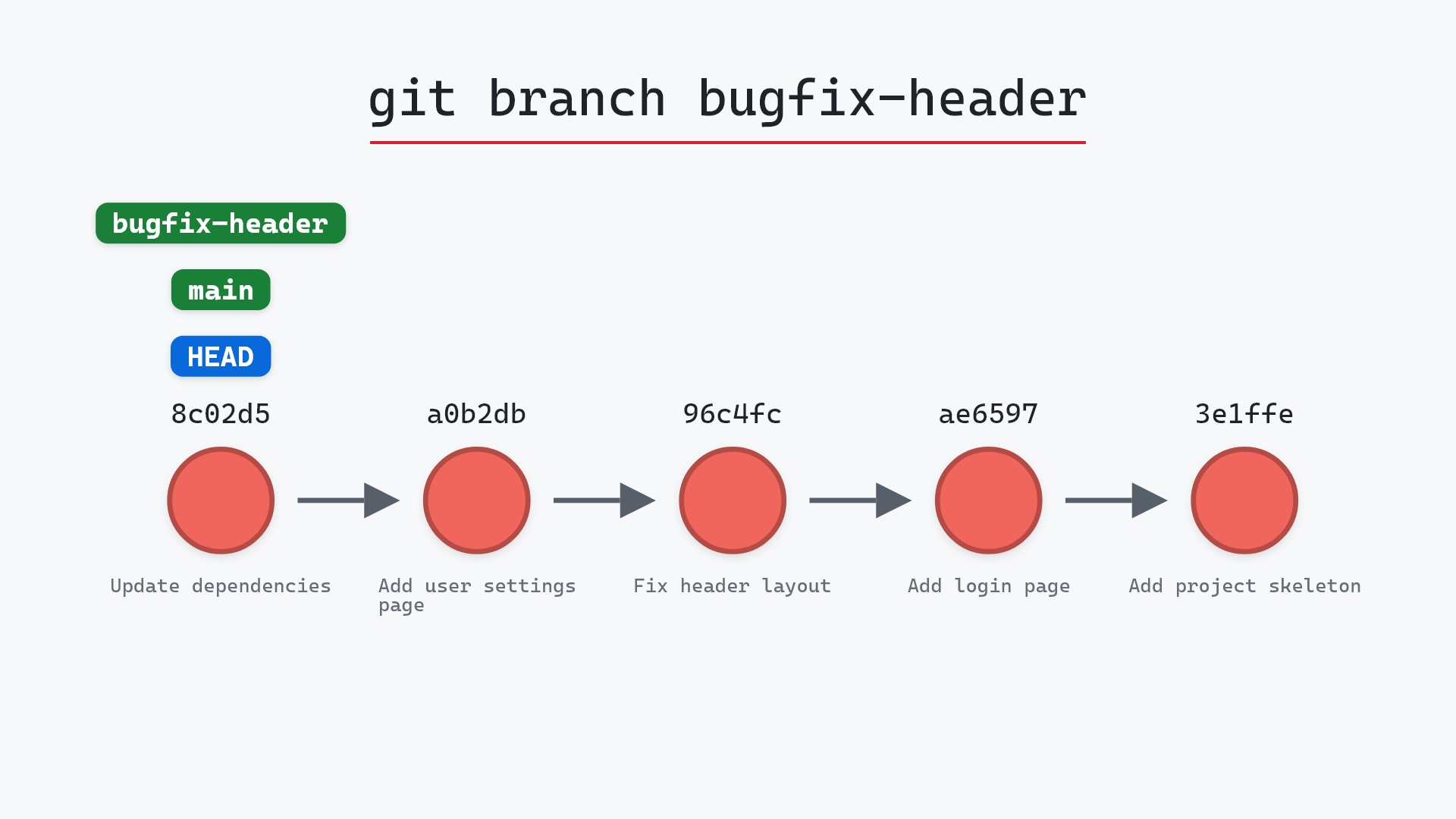
- git branch, what the labels are
- git stash, when uncommitted changes block the switch
- git restore, the modern way to discard a file's edits
- git log, to see what's on each branch
Get Git command tips by email, starting with git checkout.