Git commands
What git fetch downloads, and what it leaves alone
git fetch: the safe half of git pull
How to use this page
- sliderDrag it to move the graph from before the command to after it.
- ▶ / ❚❚Play or pause the command, start to finish, on a loop.
- Before · AfterJump straight to either end.
- ← → · spaceStep through a multi-step command; space toggles Before / After.
- APlay or pause from the keyboard (the page opens playing). Any manual input takes over.
- hoverA commit shows its message, author, date and parents, with its history highlighted.
- clickCopies the commit sha.
- ctrl + wheelZoom around the cursor (pinch on a trackpad). Double-click resets the view.
- EscStop playback, reset the view, close this menu.
- shareThe Share button copies a link to this graph, copies it as an image, downloads PNG/SVG/page, or posts it. #before, #after or #step=N in the link pins the state.
The Animated Git Cheat SheetFree · Customize it · Download it · Print it
git-sim visually simulates any Git command in your own repos - from your terminal, IDE, or AI.
Table of Contents
- Introduction
- What is git fetch?
- Watch it happen
- Before and after
- main vs origin/main
- Is it safe?
- What to do after fetching
- Useful forms
- How to undo it
- Try it on your repository
- Common questions
- Summary
- Next steps
- Related commands
Introduction
If you're like me, you learned git pull first and only found out about git fetch later, probably after a pull did something you didn't expect. I think most tutorials teach these in the wrong order. fetch is the first half of pull, and it's the half that can't break anything, so it's a much better place to start.
In this article, we'll:
- Watch
git fetchrun on a small repository and see exactly what moves - Look at the repo before and after, every branch included
- Cover what to do with the commits once they've arrived
- Clear up the difference between
mainandorigin/main, which is the whole trick
What is git fetch?
git fetch contacts a remote (usually origin), downloads any commits it has that you don't, and updates your remote-tracking branches, the labels like origin/main that record where the remote's branches were the last time you checked. Pro Git's chapter on remote branches draws them in detail.
That's all it does. It doesn't move your own branches, change any of your files, or merge anything. After a fetch you simply have more of the project's history on disk than you did before, along with an up-to-date picture of what your teammates have pushed.
Watch it happen
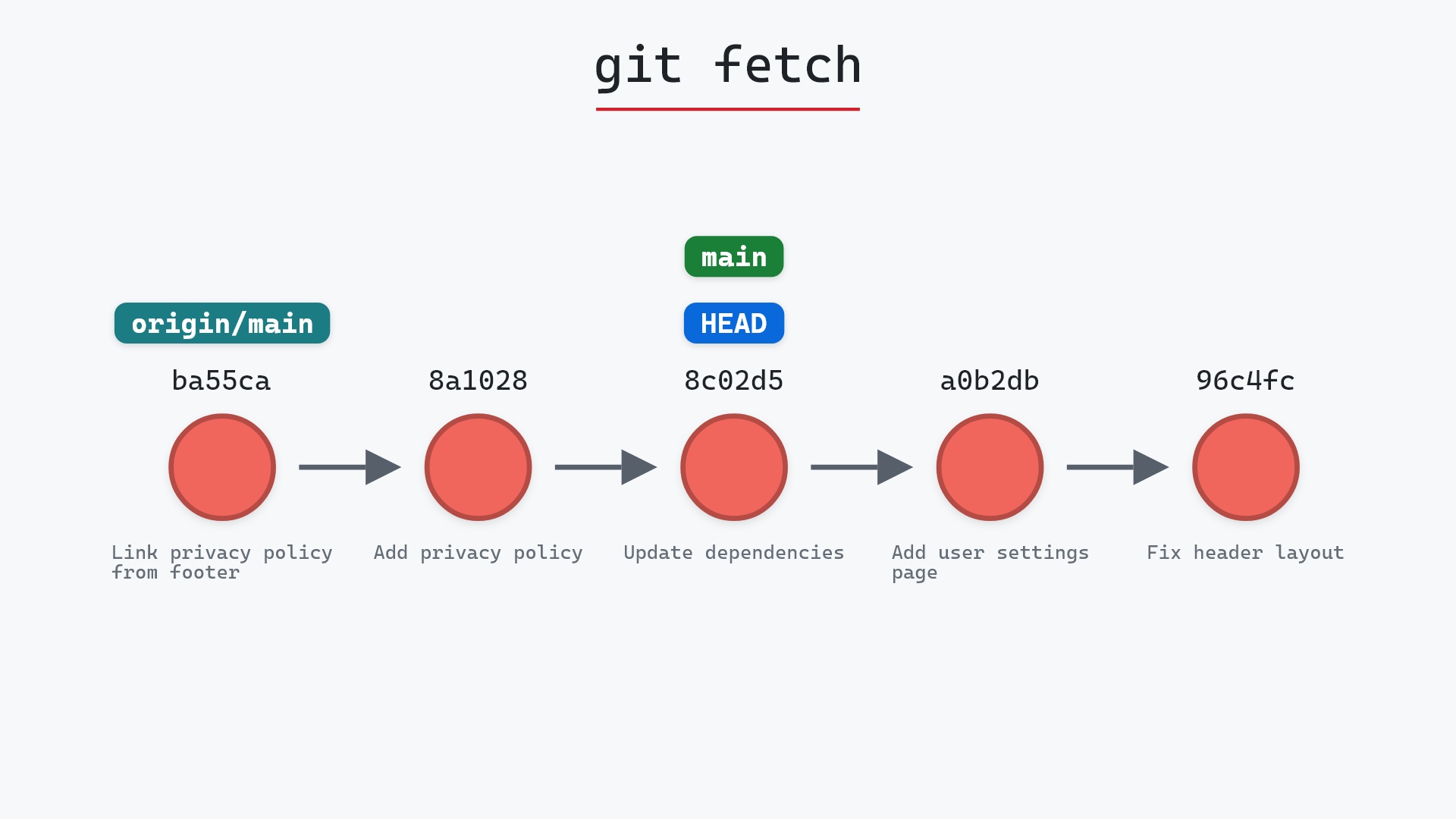
Here is git-sim's simulation of git fetch on our sample repo, where two commits from a teammate on origin that the local clone has not fetched yet. Press play, or click a step below to jump the graph to that point:
- Before:
main,HEADandorigin/mainpoint at8c02d5b. The remote has two commits this clone hasn't seen. - Git downloads the two new commits, "Add privacy policy" and "Link privacy policy from footer", which build on
8c02d5b. origin/mainmoves forward toba55ca2, the newer one.mainandHEADstay on8c02d5b.
Step 3 is the difference between fetch and pull. If main had moved as well, you'd be looking at a pull.
Before and after
Here is the whole repository, every branch, before and after the real git fetch ran. Hover a commit for its details.
Before the fetch, main and origin/main both point at 8c02d5b. After it, origin/main has moved two commits ahead to ba55ca2 and main is still at 8c02d5b. If you run git status at this point, Git reports that main is behind origin/main by 2 commits.
The raw git output, if you want to read along in text
git log --oneline --graph --all
before
* 1117a34 (origin/feature, feature) Add search tests
* e5869f0 Fix typo in search box
* fc19889 Add search box
| * 8c02d5b (HEAD -> main, origin/main, origin/HEAD) Update dependencies
| * a0b2db3 Add user settings page
|/
* 96c4fc2 Fix header layout
* ae65976 Add login page
* 3e1ffe4 Add project skeleton
* 4114b2c Initial commit
after
* ba55ca2 (origin/main, origin/HEAD) Link privacy policy from footer
* 8a10283 Add privacy policy
* 8c02d5b (HEAD -> main) Update dependencies
* a0b2db3 Add user settings page
| * 1117a34 (origin/feature, feature) Add search tests
| * e5869f0 Fix typo in search box
| * fc19889 Add search box
|/
* 96c4fc2 Fix header layout
* ae65976 Add login page
* 3e1ffe4 Add project skeleton
* 4114b2c Initial commit
what git printed
From ../your_project
   8c02d5b..ba55ca2  main       -> origin/main
main vs origin/main
This is the part that confuses a lot of people, so let's spell it out. main is a branch. Under the hood it's a text file at .git/refs/heads/main that contains a commit ID, and your commands move it around. origin/main is also a text file containing a commit ID, at .git/refs/remotes/origin/main, but you never move it directly. fetch and push update it to match wherever the remote's main currently is.
In other words, origin/main is your clone's record of where the remote was the last time you talked to it. It goes stale as soon as someone else pushes, and fetch is how you refresh it. (If you've read my article on HEAD and refs, this is the same mechanism with a remote added to the picture.)
Is it safe?
Safe git-sim pre-flight
'fetch' downloads new commits and moves remote-tracking refs (origin/*); local branches and files are untouched.
fetch writes new objects into the object database and updates the refs under refs/remotes/. It can't cause a merge conflict, it can't touch a file you're editing, and it can't lose any work. I run it freely, often just to see what's new on the remote before I decide whether to bring it in.
What to do after fetching
The new commits are on your machine now, so you can inspect them before doing anything else:
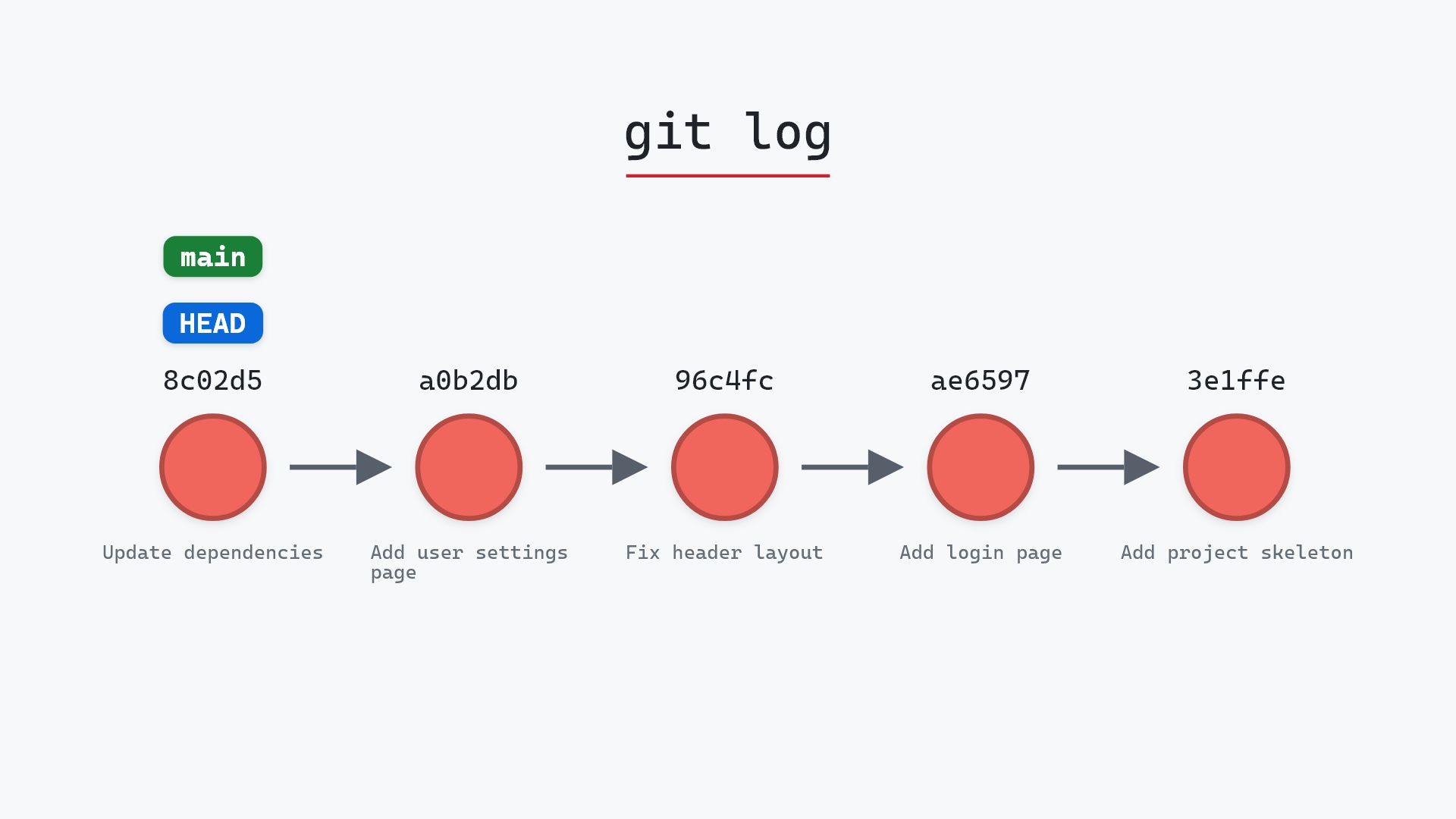
git log --oneline main..origin/main
That lists the commits the remote has that you don't. When you're ready to integrate them, you have three options depending on how you want your history to look:
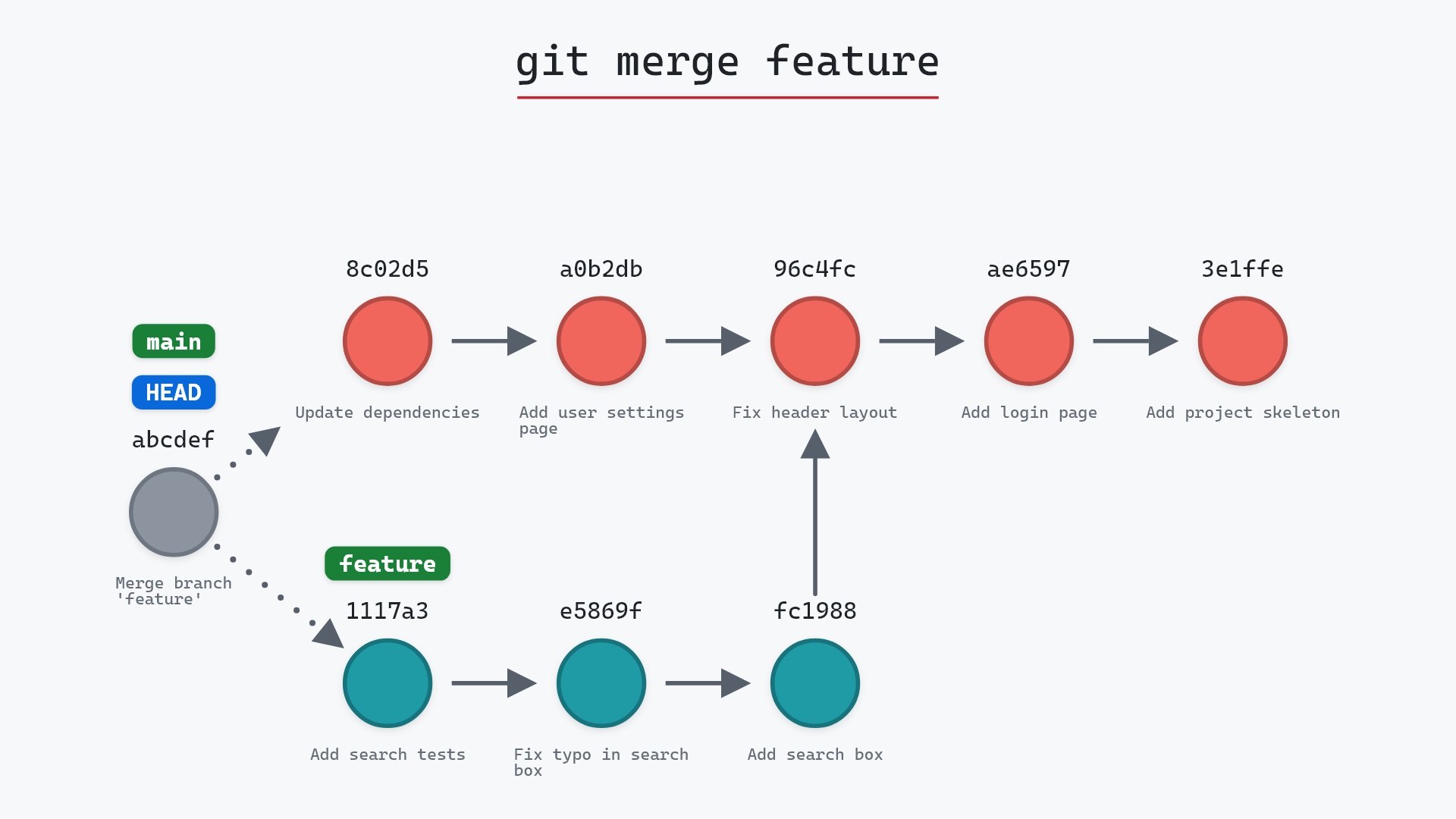
git merge origin/maincreates a merge commit if you have local commits too. Here's what that looks like on the same repo:
git rebase origin/mainreplays your local commits on top of the new ones, for a straight line.git merge --ff-only origin/mainupdatesmainonly if you have no local commits of your own (a fast-forward), and refuses otherwise. This is the one I use by default.
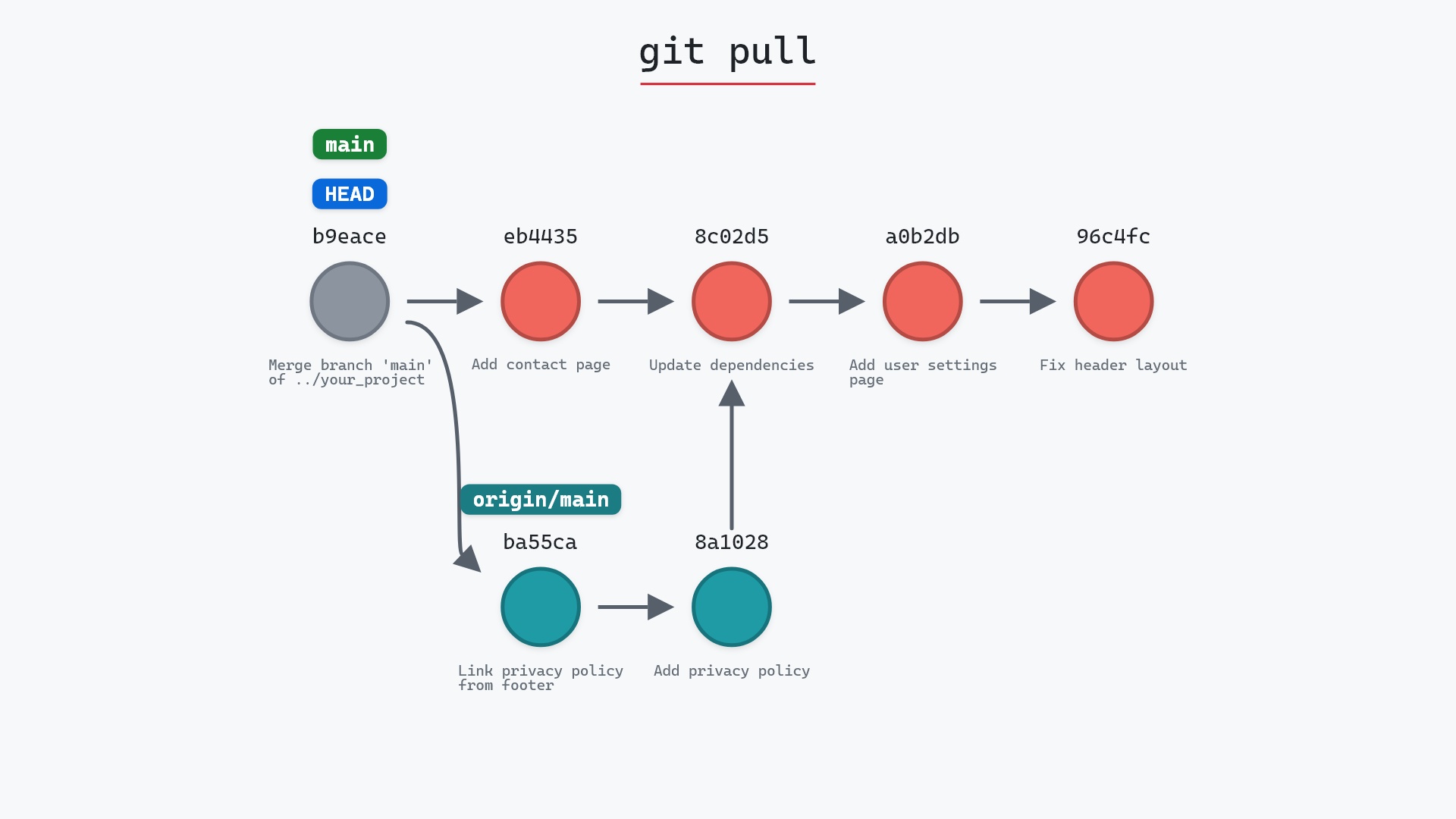
git pull runs fetch and then one of these three, based on your Git config. If you run the two steps yourself, you always know which one you're getting.
git fetch followed by git log --oneline --graph --all, so I can see what everyone pushed overnight before I merge anything. That daily graph of the whole team's branches was a big part of the inspiration for git-sim.
Useful forms
git fetch --allfetches from every remote you have.git fetch --prunedeletes remote-tracking branches whose branch on the remote no longer exists, which keepsgit branch -afrom listing branches that were merged and deleted months ago.git fetch --tagsbrings down all tags.git fetch origin featurefetches just that one branch. The git fetch documentation covers the rest, including refspecs.
How to undo it
There's nothing to undo. origin/main moved, and it will move again the next time you fetch. If you want to see where it used to point, git reflog show origin/main keeps a history of that ref as well.
Try it on your repository
pip install git-sim
git-sim fetch
git-sim draws the commits that would arrive and where origin/main would end up relative to your main, without changing anything in your repo, so you can see what the fetch would do before you run it.
Common questions
What is the difference between git fetch and git pull?
fetch downloads remote commits and updates your remote-tracking branches, leaving your own branch alone. pull does a fetch and then merges (or rebases) the fetched commits into your current branch. Any merge conflicts or unexpected merge commits from a pull come from that second step.
Does git fetch change my files?
No. It only writes to the object database and to labels under refs/remotes/. Your working directory and your own branches are untouched.
What is origin/main?
Your clone's record of where the main branch on the remote named origin was at your last fetch. It's a remote-tracking branch: fetch and push update it, your own commits never do.
How do I see what git fetch downloaded?
git log main..origin/main lists the commits the remote's main has that yours doesn't. git diff main origin/main shows the combined changes.
Summary
In this article, we watched git fetch download two commits and move origin/main while main stayed put, looked at the repository before and after, and covered the three ways to bring fetched commits into your branch.
Next steps
Next, read git pull to see the second half of the process. And if you want to see what any Git command will do to your own repo before you run it, check out git-sim.
Related commands
- git pull, which fetches and then merges
- git merge, to bring the fetched commits in
- git push, the other direction
- git log, to inspect what arrived
- git rebase, the other way to bring them in
- git branch, and how remote-tracking branches relate
- git fetch --prune, to drop remote-tracking branches that are gone from the remote
Get Git command tips by email, starting with git fetch.