Git commands
What staged, unstaged and untracked really mean
git status: reading the three lists
How to use this page
- sliderDrag it to move the graph from before the command to after it.
- ▶ / ❚❚Play or pause the command, start to finish, on a loop.
- Before · AfterJump straight to either end.
- ← → · spaceStep through a multi-step command; space toggles Before / After.
- APlay or pause from the keyboard (the page opens playing). Any manual input takes over.
- hoverA commit shows its message, author, date and parents, with its history highlighted.
- clickCopies the commit sha.
- ctrl + wheelZoom around the cursor (pinch on a trackpad). Double-click resets the view.
- EscStop playback, reset the view, close this menu.
- shareThe Share button copies a link to this graph, copies it as an image, downloads PNG/SVG/page, or posts it. #before, #after or #step=N in the link pins the state.
The Animated Git Cheat SheetFree · Customize it · Download it · Print it
git-sim visually simulates any Git command in your own repos - from your terminal, IDE, or AI.
Table of Contents
- Introduction
- What is git status?
- Watch it happen
- What git status prints
- Is it safe?
- Reading the short form
- Try it on your repository
- Common questions
- Summary
- Next steps
- Related commands
Introduction
git status is probably the Git command I run most, and for a long time I only half read its output. I'd skim for red and green and get on with it. Once I understood what its three lists actually correspond to inside Git, the rest of the everyday commands made a lot more sense.
In this article, we'll:
- Look at the three places a change can live in a Git repository
- Run
git statuson a repo with one change in each place and see how it reports them - Match each list to the command that moves a file in or out of it
What is git status?
git status compares three things and reports the differences: your working directory (the files on disk), the staging area (also called the index, the set of changes lined up for the next commit), and the commit that HEAD points at. Every line of its output is a file that differs between two of those three.
It never changes anything. It reads the index file and walks the working directory, and that's it.
Watch it happen
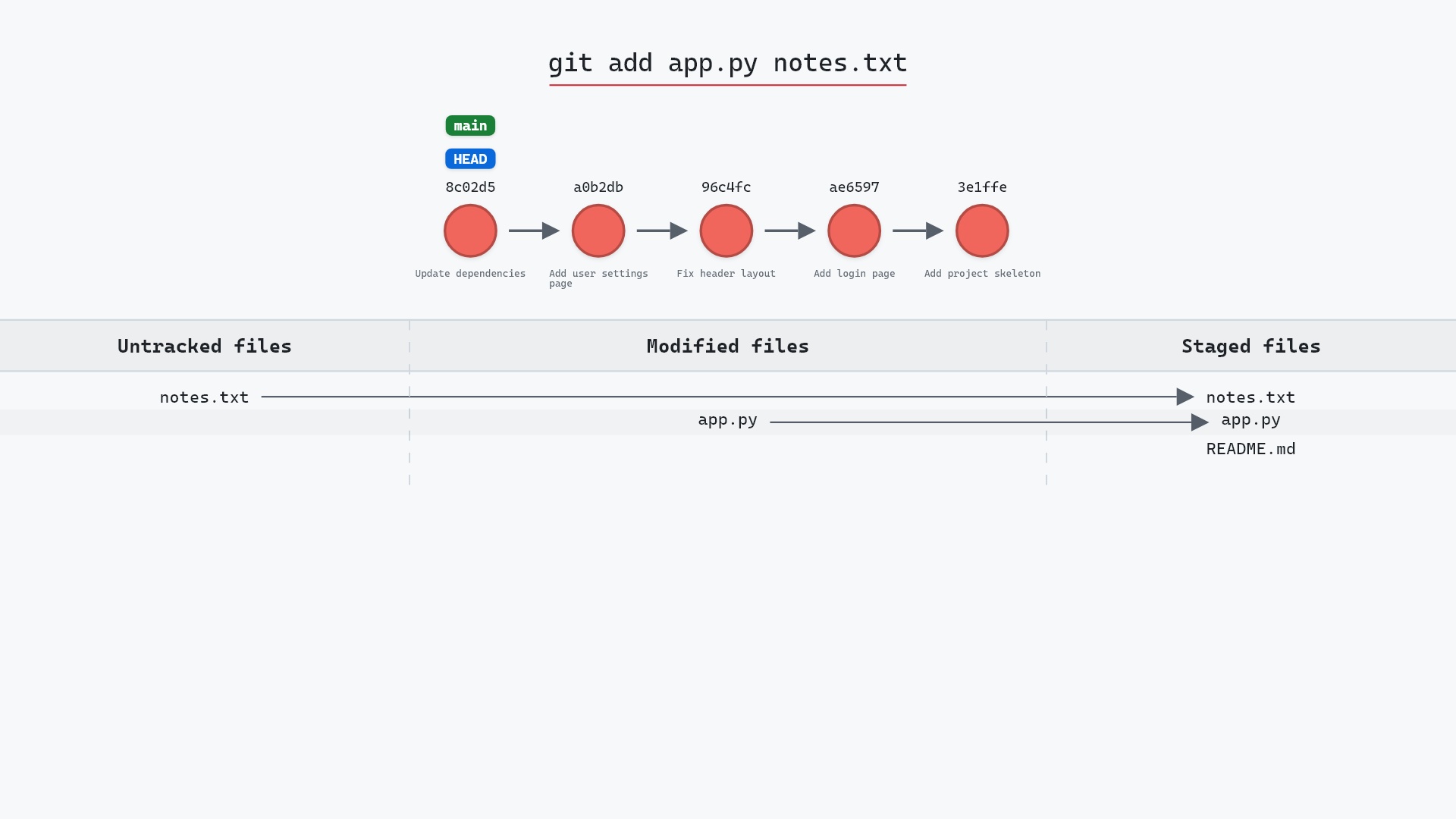
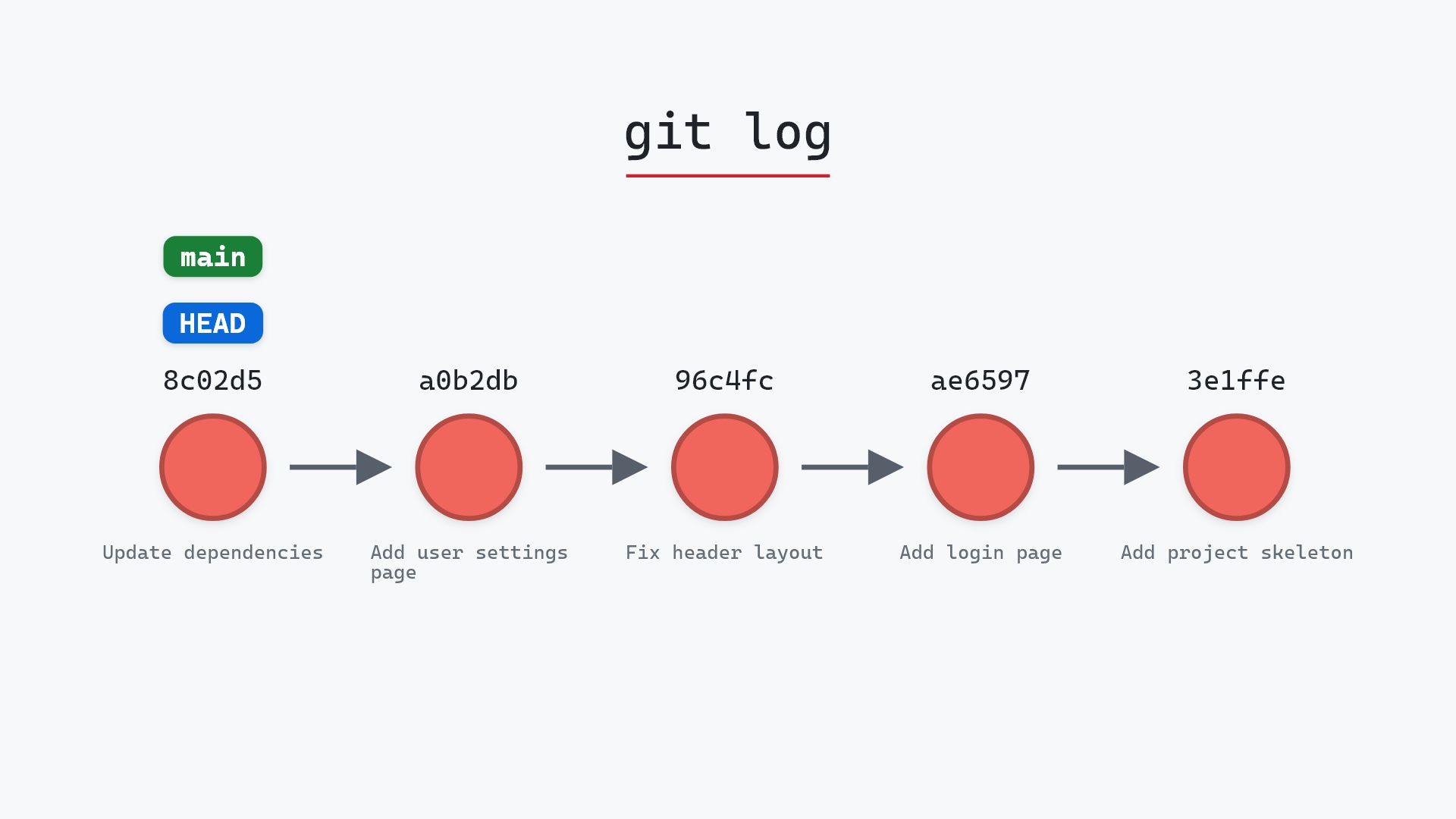
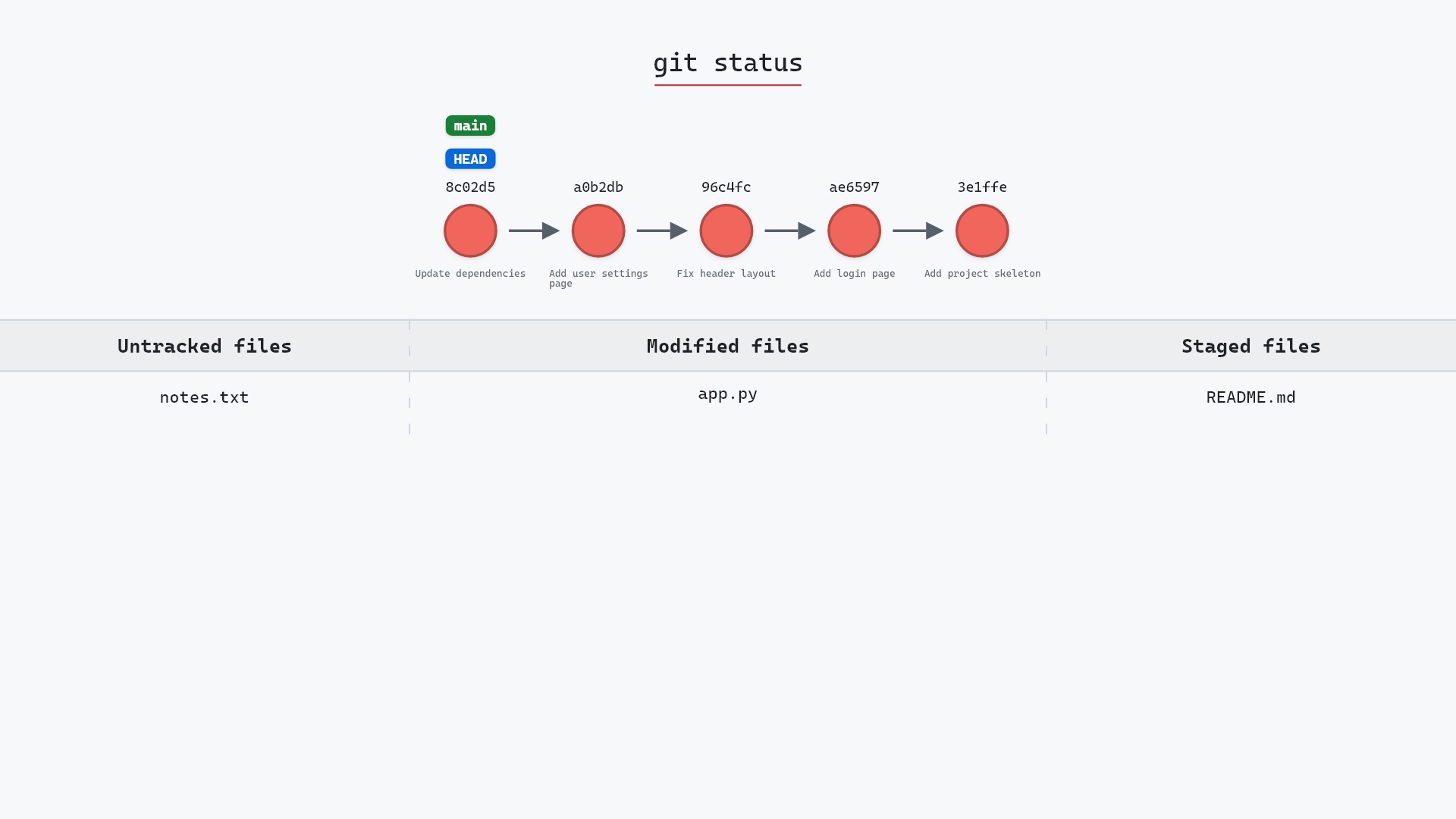
Our sample repo has one new file, one modified file and one staged file. HEAD and main are on 8c02d5b "Update dependencies", and in the graph at the top of the page each file's change sits in one of the three places:
README.mdhas a staged change. It has been added to the index and will be part of the next commit.app.pyis modified in the working directory. Git tracks the file, but the change hasn't been staged.notes.txtis untracked. Git has never seen this file in a commit or in the index.
What git status prints
Running git status on that repository gives:
The raw git output, if you want to read along in text
git log --oneline --graph --all
before
* 1117a34 (feature) Add search tests
* e5869f0 Fix typo in search box
* fc19889 Add search box
| * 8c02d5b (HEAD -> main) Update dependencies
| * a0b2db3 Add user settings page
|/
* 96c4fc2 Fix header layout
* ae65976 Add login page
* 3e1ffe4 Add project skeleton
* 4114b2c Initial commit
after
* 1117a34 (feature) Add search tests
* e5869f0 Fix typo in search box
* fc19889 Add search box
| * 8c02d5b (HEAD -> main) Update dependencies
| * a0b2db3 Add user settings page
|/
* 96c4fc2 Fix header layout
* ae65976 Add login page
* 3e1ffe4 Add project skeleton
* 4114b2c Initial commit
what git printed
On branch main
Changes to be committed:
  (use "git restore --staged <file>..." to unstage)
	modified:   README.md
Changes not staged for commit:
(use "git add <file>..." to update what will be committed)
(use "git restore <file>..." to discard changes in working directory)
modified:   app.py
Untracked files:
(use "git add <file>..." to include in what will be committed)
notes.txt
The three sections line up with the three columns in the graph. "Changes to be committed" is the staging area. "Changes not staged for commit" is tracked files that differ between disk and index. "Untracked files" is everything on disk that Git isn't tracking and that .gitignore doesn't exclude.
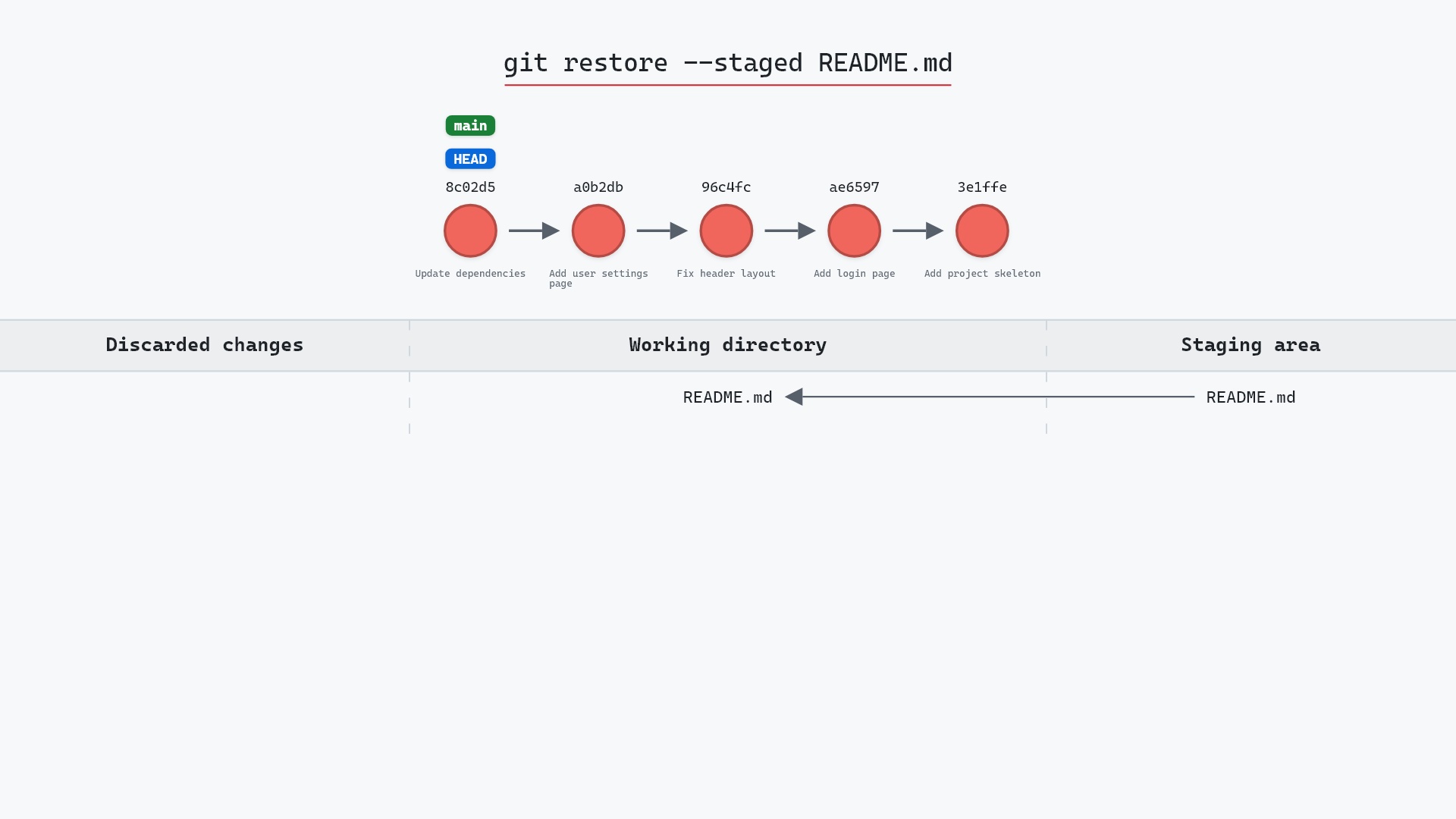
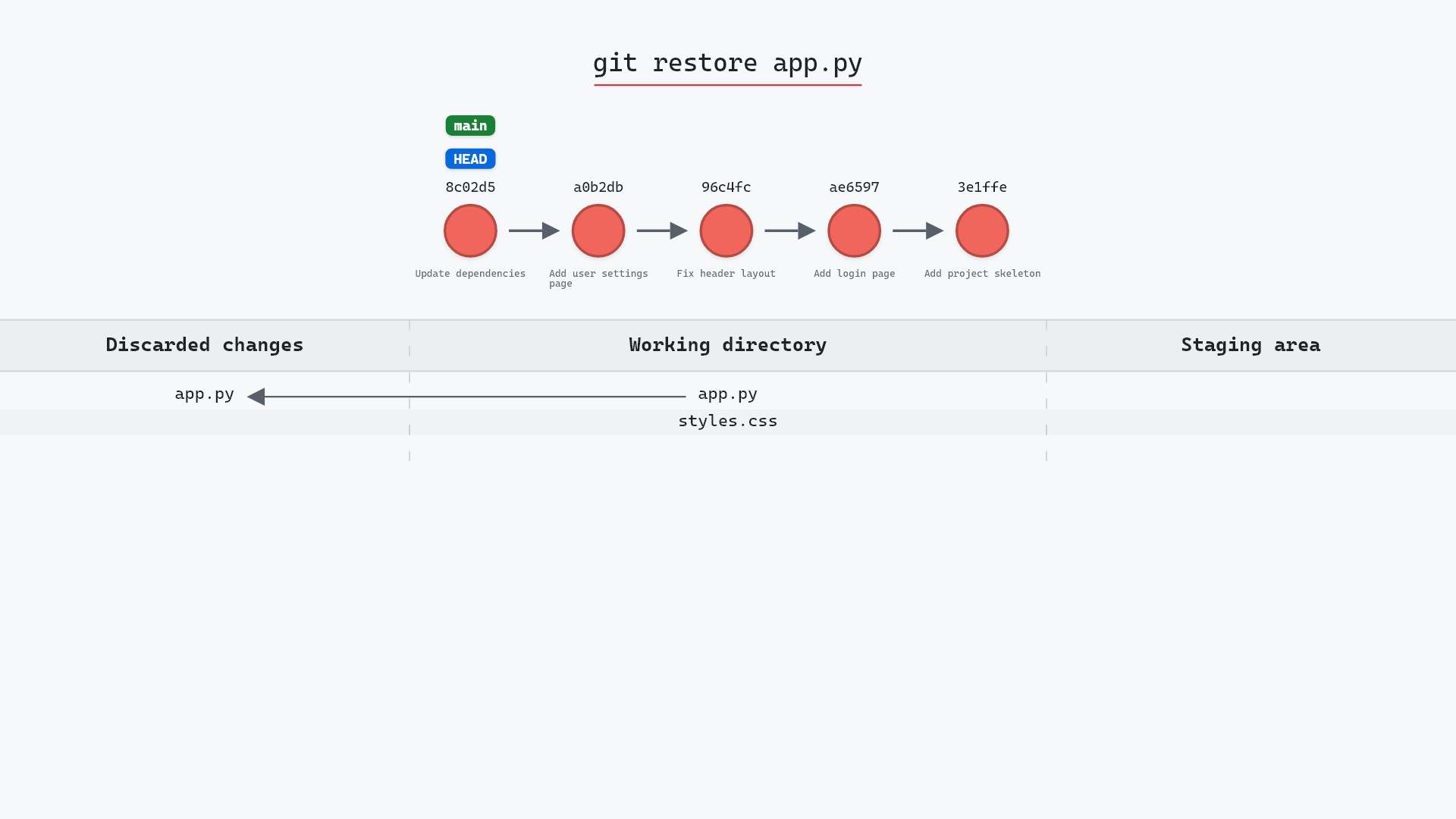
Git also tells you the escape route under each heading. git restore --staged <file> moves a file back out of the staging area, git add <file> moves it in, and git restore <file> throws away a working directory edit. Here is git add moving the modified and untracked files into the staging area:
Is it safe?
Safe git-sim pre-flight
'status' only reads; nothing in the repository changes.
There's no way to lose anything with git status. Run it as often as you like. I run it before and after nearly every other command, and that habit alone has saved me from committing debug prints more times than I can count.
status command at all. It had show-diff, which compared the index to the working directory, and that was your only window into what had changed. The three-list output we take for granted came later, once the index had settled into the role it plays today.
Reading the short form
git status --short (or -s) packs the same information into two characters per file:
M  README.md
 M app.py
?? notes.txt
The first column is the staging area, the second is the working directory. M in the first column means staged, M in the second means modified but unstaged, and ?? means untracked. The short format section of the docs lists the other letters, like A, D and R. Once you can read these at a glance the long form feels slow. Adding --branch (-sb) puts your branch and its relation to the remote on the first line, which is how the status listings on these pages are produced.
Try it on your repository
pip install git-sim
git-sim status
git-sim draws your own working directory, staging area and last commit as the same three columns, with your real file names in them, which is a quicker read than the text when there are a lot of changes.
Common questions
What is the difference between staged and unstaged changes?
A staged change has been copied into the index with git add and will be included in the next commit. An unstaged change exists only in your working directory. The same file can have both at once, if you staged it and then edited it again. The Pro Git chapter on recording changes walks through that case step by step.
What does untracked mean in git status?
An untracked file is one that exists on disk but isn't in the index or in the current commit, and isn't matched by .gitignore. Git won't include it in a commit until you git add it.
Does git status show ignored files?
Not by default. git status --ignored lists them in a separate section.
Why does git status say my branch is ahead or behind?
When your branch tracks a remote branch, status compares the two. "Ahead by 2" means you have two commits the remote doesn't, and "behind by 2" means the remote has two you don't. It's comparing against your last fetch, so it can be out of date.
Summary
In this article, we looked at the three places a change can live in Git, ran git status on a repository with one change in each, and matched each section of its output to the command that moves a file in or out of it.
Next steps
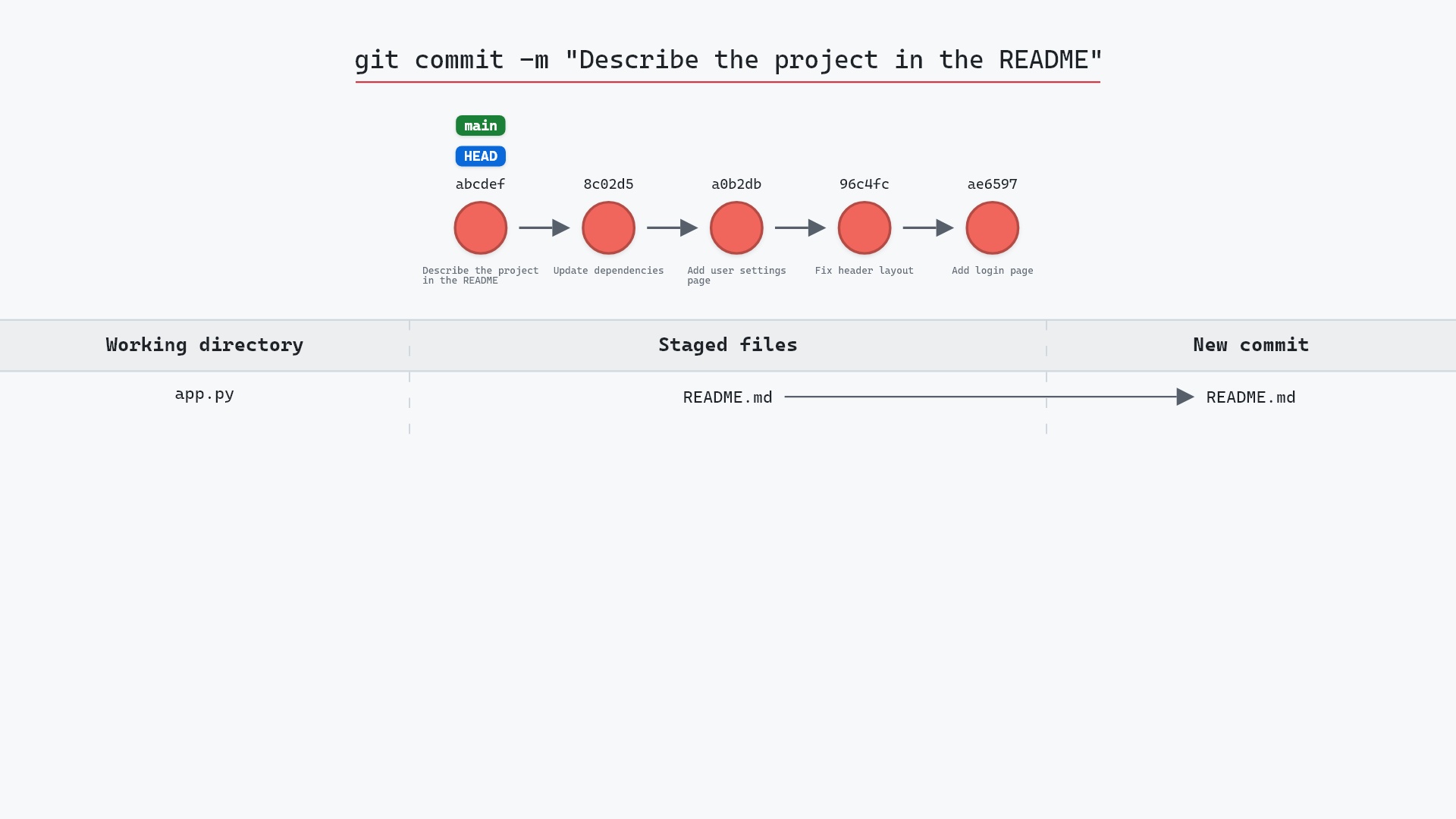
The natural follow-ups are git add, which moves a change into the staging area, and git restore --staged, which moves it back out.
Related commands
- git add, to stage a change
- git commit, to record what's staged
- git restore --staged, to unstage without losing the edit
- git restore, to discard a working directory edit
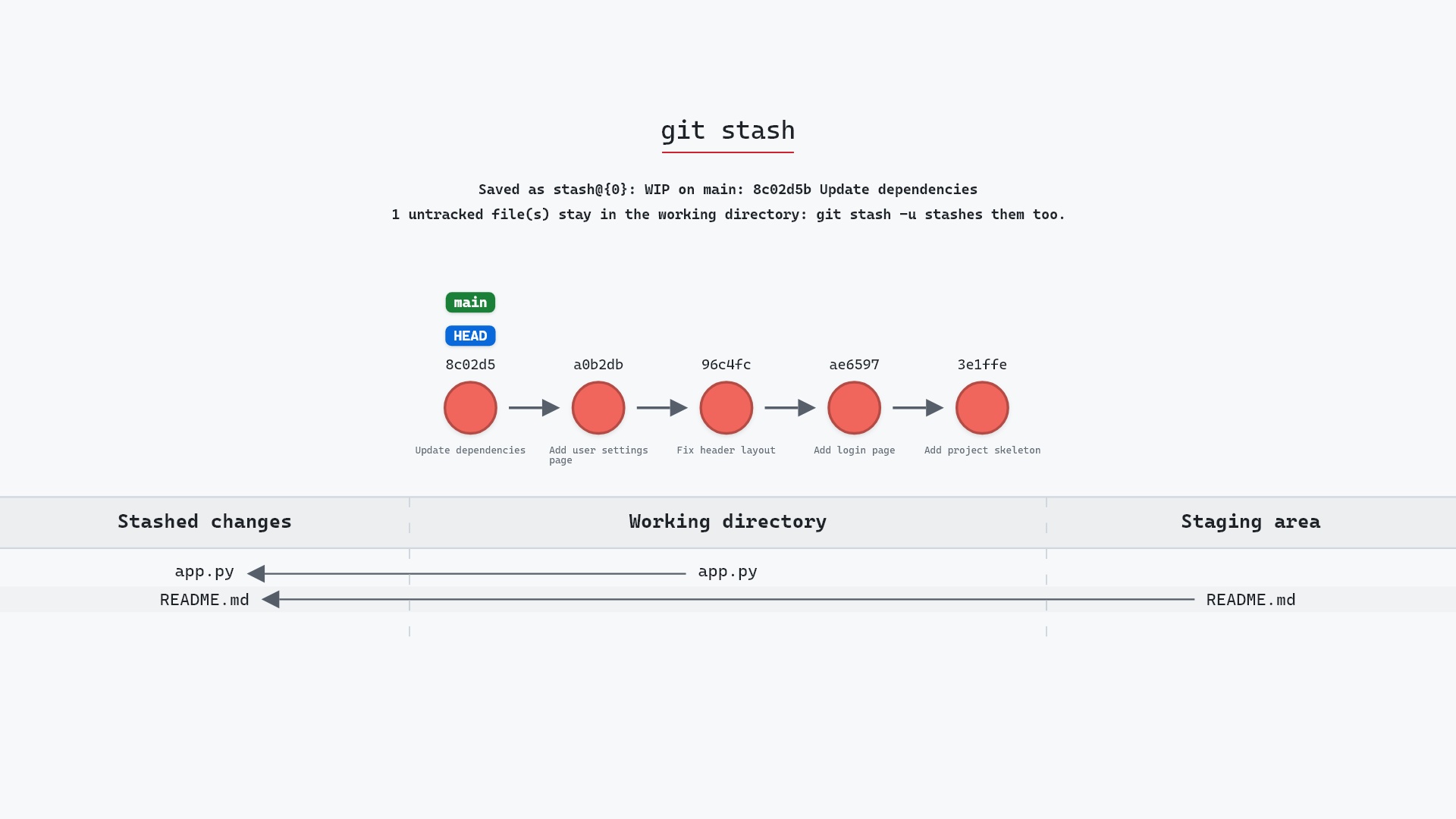
- git stash, to set all of it aside
- git log, to read what's already committed
Get Git command tips by email, starting with git status.