Git commands
What git clean -fd removes that plain git clean -f leaves behind
git clean -fd: untracked folders go too
How to use this page
- sliderDrag it to move the graph from before the command to after it.
- ▶ / ❚❚Play or pause the command, start to finish, on a loop.
- Before · AfterJump straight to either end.
- ← → · spaceStep through a multi-step command; space toggles Before / After.
- APlay or pause from the keyboard (the page opens playing). Any manual input takes over.
- hoverA commit shows its message, author, date and parents, with its history highlighted.
- clickCopies the commit sha.
- ctrl + wheelZoom around the cursor (pinch on a trackpad). Double-click resets the view.
- EscStop playback, reset the view, close this menu.
- shareThe Share button copies a link to this graph, copies it as an image, downloads PNG/SVG/page, or posts it. #before, #after or #step=N in the link pins the state.
The Animated Git Cheat SheetFree · Customize it · Download it · Print it
git-sim visually simulates any Git command in your own repos - from your terminal, IDE, or AI.
Table of Contents
- Introduction
- What is git clean -fd?
- Watch it happen
- Before and after
- -d, -x and -X
- What -d still skips
- Is it safe?
- How to undo it
- Try it on your repository
- Common questions
- Summary
- Next steps
- Related commands
Introduction
If you've run git clean -f and found a stray tmp/ folder still sitting there afterwards, that's by design. Plain -f removes untracked files, but when a whole directory is untracked, it leaves that directory and everything in it alone. Adding -d tells it to, which is why git clean -fd is the form most people end up typing.
In this article, we'll:
- Watch
git clean -fddelete an untracked file and an untracked folder - Confirm that tracked changes survive it
- Cover how
-drelates to-x, and the cases it still skips
What is git clean -fd?
git clean -fd is git clean -f plus -d, which lets it recurse into untracked directories and delete them along with everything inside. An untracked directory is one that holds no tracked files, which git status shows as a single line ending in a slash, like ?? tmp/. Empty directories count too (Git doesn't track directories, so an empty one is invisible to git status, but -fd removes it).
Like every form of clean, it skips files matched by .gitignore unless you add -x, and the deletion is permanent.
Watch it happen
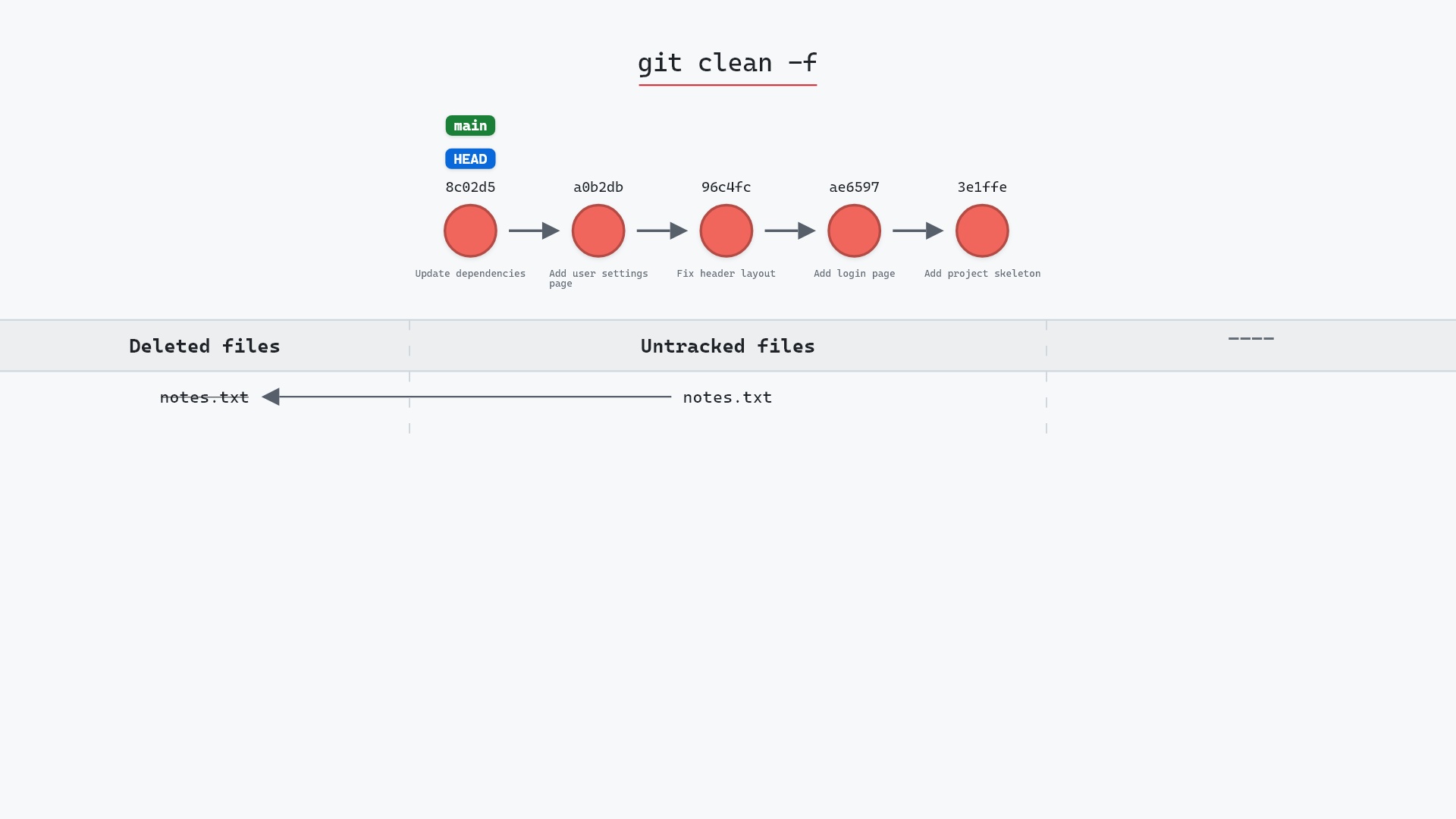
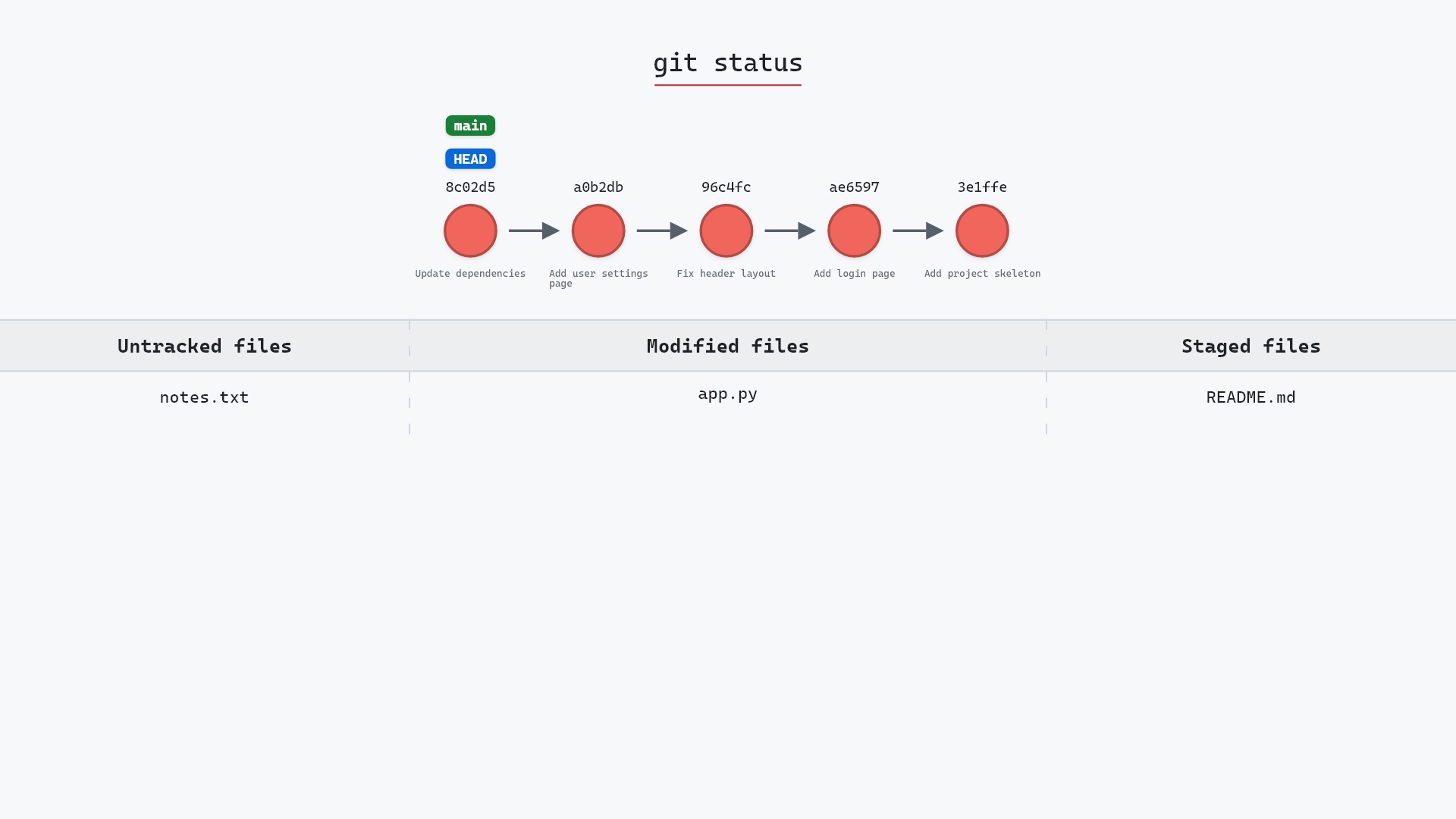
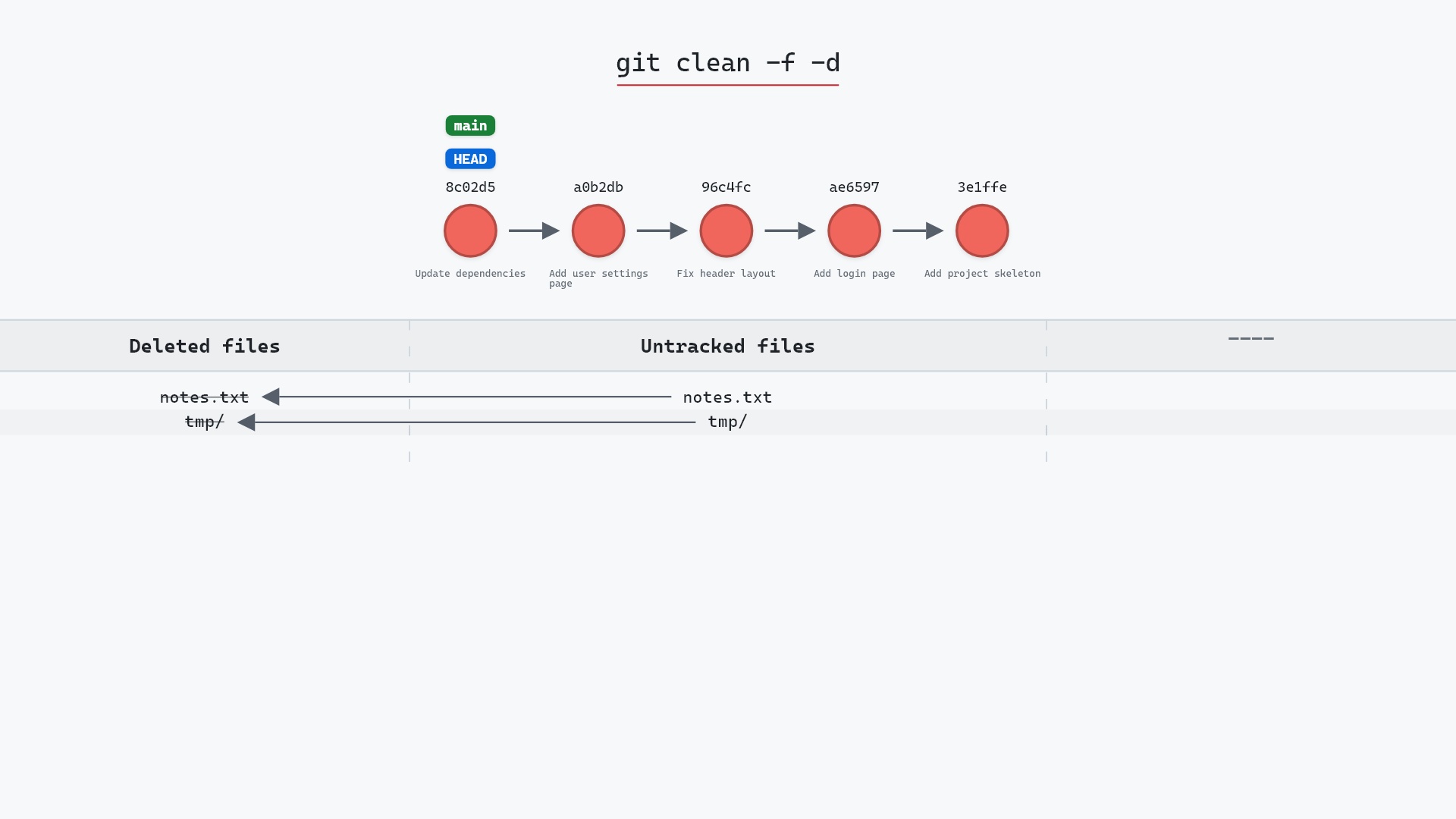
Our sample repo has an untracked file and an untracked folder, on main at 8c02d5b, "Update dependencies". README.md is staged and app.py modified, next to an untracked notes.txt and an untracked tmp/ folder. Here's git clean -fd:
- Before:
notes.txtandtmp/are both untracked. - Git deletes both from disk.
tmp/goes as one entry, contents and all. - No commit or branch changes, and the tracked files aren't touched, since
cleannever considers them.
With plain git clean -f, only notes.txt would have moved. tmp/ would have stayed exactly where it was.
Before and after
git status --short before:
M  README.md
 M app.py
?? notes.txt
?? tmp/
and after:
M  README.md
 M app.py
The staged README.md and modified app.py are still there. notes.txt and tmp/ are gone. Git names each path as it removes it, with a trailing slash for the directory:
The raw git output, if you want to read along in text
git log --oneline --graph --all
before
* 1117a34 (feature) Add search tests
* e5869f0 Fix typo in search box
* fc19889 Add search box
| * 8c02d5b (HEAD -> main) Update dependencies
| * a0b2db3 Add user settings page
|/
* 96c4fc2 Fix header layout
* ae65976 Add login page
* 3e1ffe4 Add project skeleton
* 4114b2c Initial commit
after
* 1117a34 (feature) Add search tests
* e5869f0 Fix typo in search box
* fc19889 Add search box
| * 8c02d5b (HEAD -> main) Update dependencies
| * a0b2db3 Add user settings page
|/
* 96c4fc2 Fix header layout
* ae65976 Add login page
* 3e1ffe4 Add project skeleton
* 4114b2c Initial commit
what git printed
Removing notes.txt
Removing tmp/
-d, -x and -X
These flags stack, and it helps to be precise about what each one adds:
git clean -fremoves untracked files, but not untracked directories.git clean -fdadds untracked directories.git clean -fdxalso removes ignored files and directories: build output,node_modules/, virtual environments, and.envfiles with your local secrets in them.git clean -fdXremoves only ignored files and directories, and keeps your other untracked work.
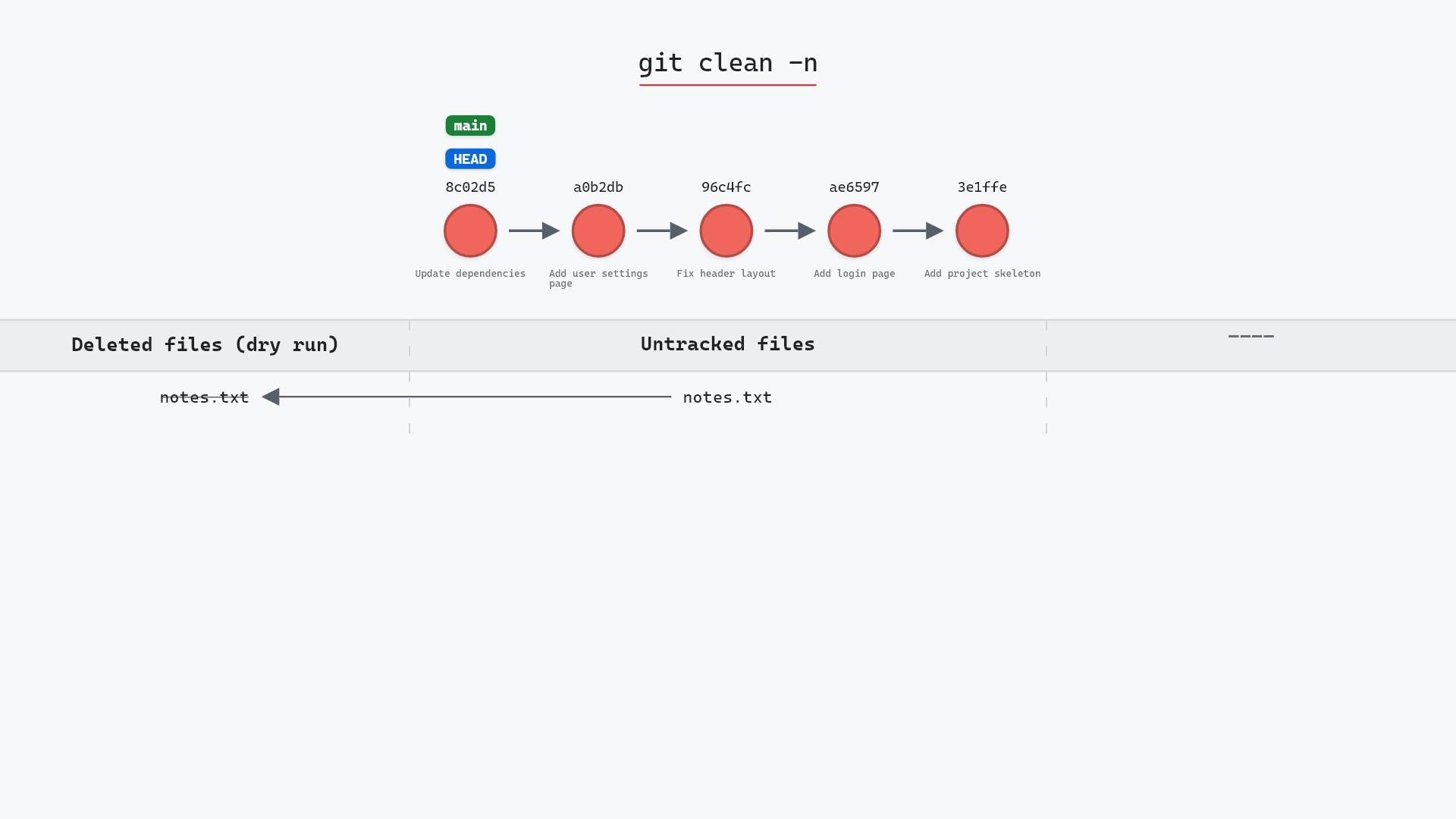
The jump from -fd to -fdx is the big one. Everything .gitignore hides is usually either regenerated by a build or something you'd hate to lose, and -x doesn't distinguish between the two. Preview with git clean -n first: git clean -nd or git clean -ndx lists exactly what the real run would remove.
git clean -fdx in a Python project, it took my .venv along with the build folders, since the virtual environment is ignored. Nothing irreplaceable, just a reinstall, but it's the reason I now reach for -X when all I want is a fresh build, and check the list with -n first.
What -d still skips
- Ignored files, without
-xor-X. A folder that holds only ignored files survives-fd, because its contents do. - Nested repositories. An untracked directory with its own
.gitis left alone. Git needs-ftwice (git clean -ffd) before it will delete another repository. - Tracked files, always. Use git restore or git reset --hard for those.
One more detail from the git clean documentation: when you give clean a pathspec, such as git clean -f tmp/, it removes the untracked files matching that path whether or not you pass -d.
Is it safe?
Destructive git-sim pre-flight
Permanently deletes 2 untracked path(s).
What you would lose
- notes.txt (untracked — NOT recoverable)
- tmp/ (untracked — NOT recoverable)
- Untracked files are not in git's object store; deletion is permanent.
git-sim rates this destructive because neither notes.txt nor anything in tmp/ was ever in Git's object store. A directory can hold a lot of work, so the one-line tmp/ entry deserves a closer look than a single file would.
How to undo it
You can't, in Git. Untracked files were never committed or staged, so no Git command has a copy. Your editor's local history, your operating system's backups, or the build that generated the files are the only ways back. If you want untracked work out of the way but not gone, git stash -u sets it aside instead.
Try it on your repository
pip install git-sim
git-sim clean -fd
git-sim lists each file and directory the command would remove, marks them not recoverable, and deletes nothing.
Common questions
What is the difference between git clean -f and git clean -fd?
-f deletes untracked files but leaves untracked directories alone. -fd deletes untracked directories too, with everything inside them.
Does git clean -fd delete ignored files?
No. Ignored files survive unless you add -x (ignored and untracked) or -X (ignored only).
Why didn't git clean -fd remove a folder?
It might contain ignored files, which keep the folder alive, or it might be a nested Git repository, which needs git clean -ffd. git clean -ndx shows what adding -x would change.
How do I remove untracked files but keep a specific folder?
Exclude it with -e, for example git clean -fd -e config/, or add it to .gitignore.
Summary
In this article, we watched git clean -fd remove both notes.txt and the tmp/ folder while the tracked changes stayed, and covered how -d differs from -x and -X and what it still leaves alone.
Next steps
Preview first with git clean -n, every time. git clean covers the basics of what untracked means and why the deletion is permanent.
Related commands
- git clean, the file-only version
- git clean -n, to preview before deleting
- git reset --hard, the tracked-file counterpart
- git status, shows untracked folders as one line
- git stash -u, to keep untracked work instead
- git rm, for removing tracked files
Get Git command tips by email, starting with git clean -fd.