Git commands
What git rm stages, and how to keep the file on disk
git rm: removing a file from the repository and the disk
How to use this page
- sliderDrag it to move the graph from before the command to after it.
- ▶ / ❚❚Play or pause the command, start to finish, on a loop.
- Before · AfterJump straight to either end.
- ← → · spaceStep through a multi-step command; space toggles Before / After.
- APlay or pause from the keyboard (the page opens playing). Any manual input takes over.
- hoverA commit shows its message, author, date and parents, with its history highlighted.
- clickCopies the commit sha.
- ctrl + wheelZoom around the cursor (pinch on a trackpad). Double-click resets the view.
- EscStop playback, reset the view, close this menu.
- shareThe Share button copies a link to this graph, copies it as an image, downloads PNG/SVG/page, or posts it. #before, #after or #step=N in the link pins the state.
The Animated Git Cheat SheetFree · Customize it · Download it · Print it
git-sim visually simulates any Git command in your own repos - from your terminal, IDE, or AI.
Table of Contents
- Introduction
- What is git rm?
- Watch it happen
- Before and after
- Keeping the file on disk
- Is it safe?
- Useful forms
- How to undo it
- Try it on your repository
- Common questions
- Summary
- Next steps
- Related commands
Introduction
Deleting a file in a Git repository takes two steps if you do it by hand: delete it, then git add the deletion so the next commit records it. git rm does both. It also has a flag that does only the second half, which is the answer to one of the most common Git questions there is: how do I stop tracking a file without deleting it?
In this article, we'll:
- Watch
git rm login.htmlremove a file and stage the removal - See what
git statusreports afterwards - Cover
--cached, and how to undo a removal before and after committing
What is git rm?
git rm <file> deletes <file> from your working directory and removes it from the staging area, so the next commit will no longer include it. The file's content is still in every earlier commit. rm only affects what happens from here on. Git refuses to remove a file that has uncommitted modifications, unless you add -f, so you don't lose edits by accident.
Watch it happen
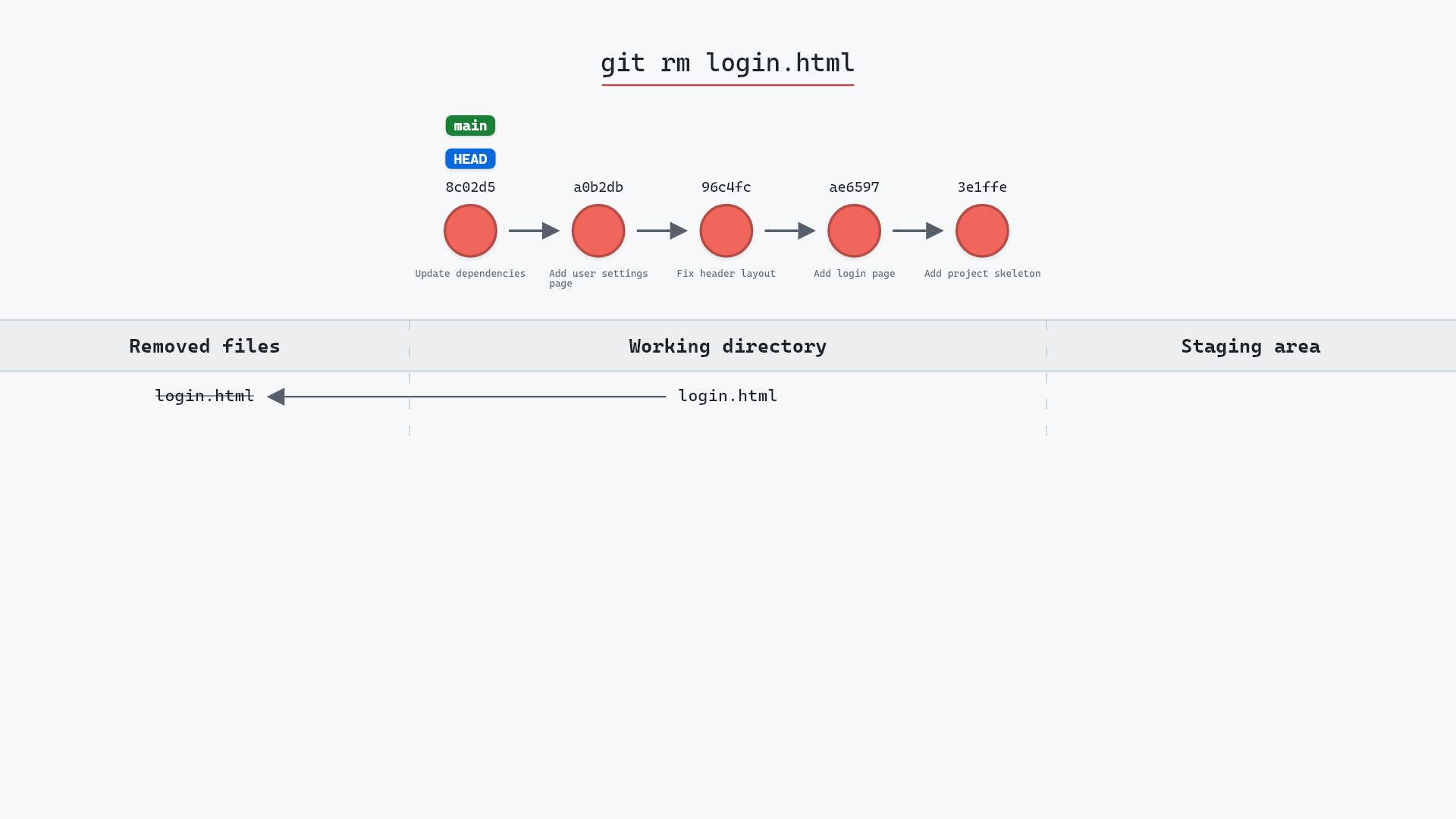
Our sample repo has a tracked file to remove. Here's git rm login.html:
- Before:
login.htmlis a tracked file, and the working directory and staging area are clean. - Git deletes
login.htmlfrom the working directory and stages the deletion. - No commit is created, and
mainandHEADdon't move. The deletion is staged for the next commit.
Before and after
git status --short was clean before. After:
D login.html
The D in the first column means the deletion is staged. Git echoes what it removed:
The raw git output, if you want to read along in text
git log --oneline --graph --all
before
* 1117a34 (feature) Add search tests
* e5869f0 Fix typo in search box
* fc19889 Add search box
| * 8c02d5b (HEAD -> main) Update dependencies
| * a0b2db3 Add user settings page
|/
* 96c4fc2 Fix header layout
* ae65976 Add login page
* 3e1ffe4 Add project skeleton
* 4114b2c Initial commit
after
* 1117a34 (feature) Add search tests
* e5869f0 Fix typo in search box
* fc19889 Add search box
| * 8c02d5b (HEAD -> main) Update dependencies
| * a0b2db3 Add user settings page
|/
* 96c4fc2 Fix header layout
* ae65976 Add login page
* 3e1ffe4 Add project skeleton
* 4114b2c Initial commit
what git printed
rm 'login.html'Keeping the file on disk
git rm --cached login.html
removes the file from the staging area only. It stays in your working directory, and after the next commit Git treats it as untracked. This is the fix when you've committed something that should have been in .gitignore: add the pattern, git rm --cached the file, commit.
--cached form is the one I reach for most. Every project seems to acquire one committed .env or build artifact before the ignore file catches up, and git rm --cached plus a commit is the cleanup. Keep in mind the file's contents stay in history. If it was a secret, rotating it is the fix, not removing it.
Is it safe?
Caution git-sim pre-flight
Deletes 1 tracked file(s) from the working tree and index.
The way back
Committed content comes back with: git checkout HEAD -- <path>
The committed version of the file is untouched. Until you commit, git restore --staged and git restore bring it back. After committing, it's in the previous commit and git checkout HEAD~1 -- login.html restores it. Only uncommitted edits to the file would be at risk, and rm refuses those without -f.
Useful forms
git rm --cached <file>untracks without deleting.git rm -r <dir>removes a directory.git rm -f <file>removes even if the file has uncommitted changes.git rm -n <file>shows what would be removed without doing it. The git rm documentation has the rest.
How to undo it
Before committing:
git restore --staged login.html
git restore login.html
The first unstages the deletion, the second brings the file back from the staging area. After committing, git checkout HEAD~1 -- login.html retrieves it from the previous commit.
Try it on your repository
pip install git-sim
git-sim rm login.html
git-sim shows the file leaving the working directory and the deletion appearing in the staging area, and warns if the file has uncommitted edits.
Common questions
What does git rm do?
It deletes a tracked file from the working directory and stages the deletion for the next commit.
How do I remove a file from Git without deleting it?
git rm --cached <file>. The file stays on disk and becomes untracked after you commit.
How do I undo git rm?
Before committing, git restore --staged <file> then git restore <file>. After committing, git checkout HEAD~1 -- <file>.
Does git rm remove the file from history?
No. Earlier commits still contain it. Removing content from history entirely needs a history rewrite such as git filter-repo.
Summary
In this article, we watched git rm delete a file and stage the deletion, looked at --cached for untracking without deleting, and covered how to bring a removed file back.
Next steps
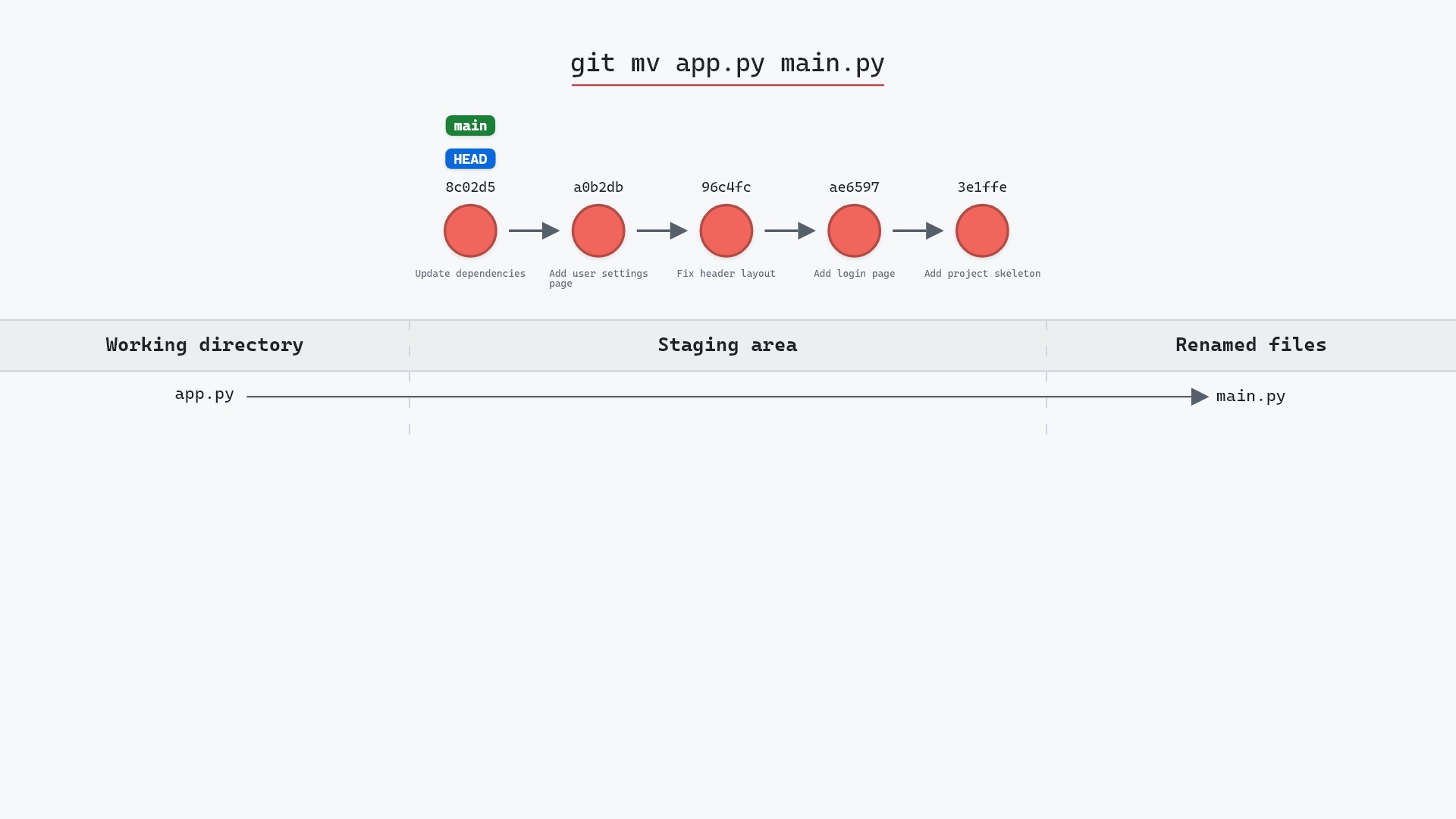
git mv is the renaming counterpart, and stages a very similar change:
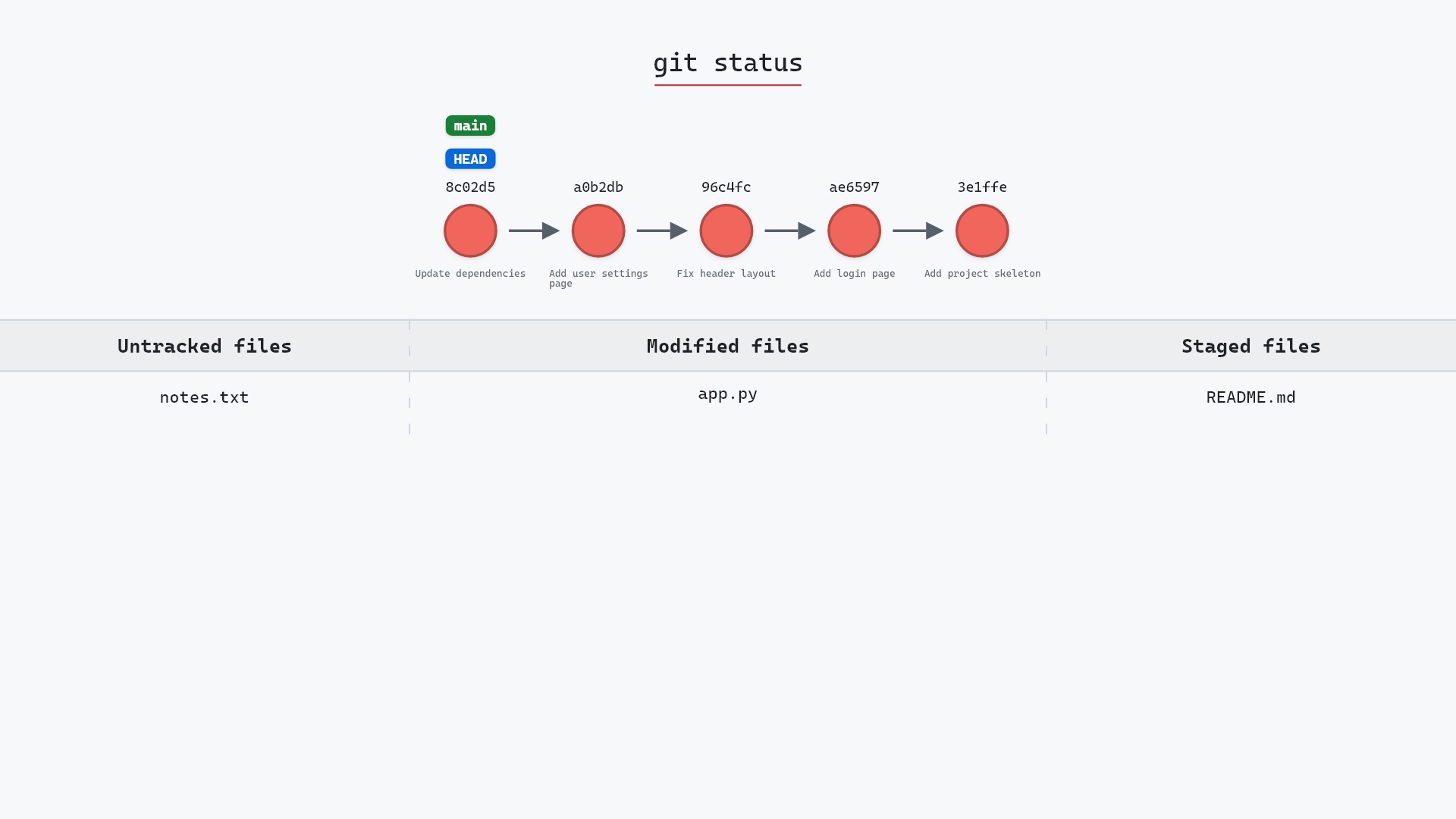
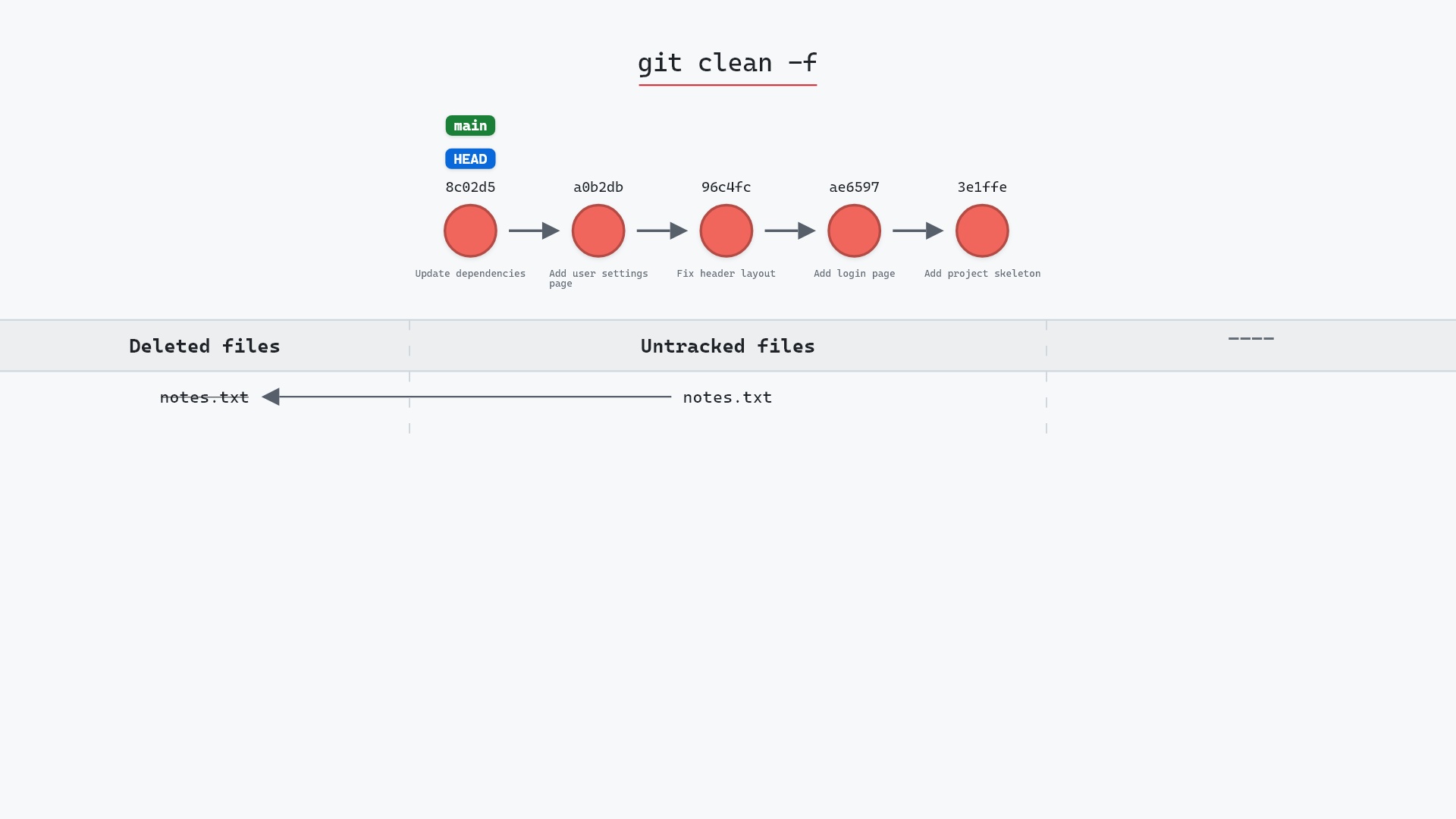
git clean is what removes files Git isn't tracking.
Related commands
- git add, the reverse operation
- git mv, to rename instead
- git restore, to bring the file back before committing
- git commit, to record the removal
- git status, to see the staged deletion
- git clean, for untracked files
- git rm --cached, to stop tracking a file but keep it on disk
Get Git command tips by email, starting with git rm.