Git commands
Where git config writes your settings, and which one wins
git config: telling Git who you are
How to use this page
- sliderDrag it to move the graph from before the command to after it.
- ▶ / ❚❚Play or pause the command, start to finish, on a loop.
- Before · AfterJump straight to either end.
- ← → · spaceStep through a multi-step command; space toggles Before / After.
- APlay or pause from the keyboard (the page opens playing). Any manual input takes over.
- hoverA commit shows its message, author, date and parents, with its history highlighted.
- clickCopies the commit sha.
- ctrl + wheelZoom around the cursor (pinch on a trackpad). Double-click resets the view.
- EscStop playback, reset the view, close this menu.
- shareThe Share button copies a link to this graph, copies it as an image, downloads PNG/SVG/page, or posts it. #before, #after or #step=N in the link pins the state.
The Animated Git Cheat SheetFree · Customize it · Download it · Print it
git-sim visually simulates any Git command in your own repos - from your terminal, IDE, or AI.
Table of Contents
- Introduction
- What is git config?
- Watch it happen
- Before and after
- Where Git's config files live
- First-time setup
- Reading, changing and removing settings
- Settings Git writes for you
- Is it safe?
- How to undo it
- Try it on your repository
- Common questions
- Summary
- Next steps
- Related commands
Introduction
Before your first commit, Git wants to know your name and email address, because it writes both into every commit you make. That's usually the first time anyone meets git config. It stays useful well after that, since pretty much everything Git does that can be adjusted (the editor it opens, the name of the first branch, what git pull does) is a config setting.
In this article, we'll:
- Watch
git configset a name in one repository - Look at the three levels settings live at, and which one wins
- Cover reading, changing and removing settings
What is git config?
git config reads and writes Git's configuration files. Settings are named section.key, like user.name or core.editor (the git config documentation lists every one), and stored in plain-text INI-style files. Which file gets written depends on the scope you choose: --system for every user on the machine, --global for you in every repository, and --local (the default when you're inside a repository) for this repository only.
Watch it happen
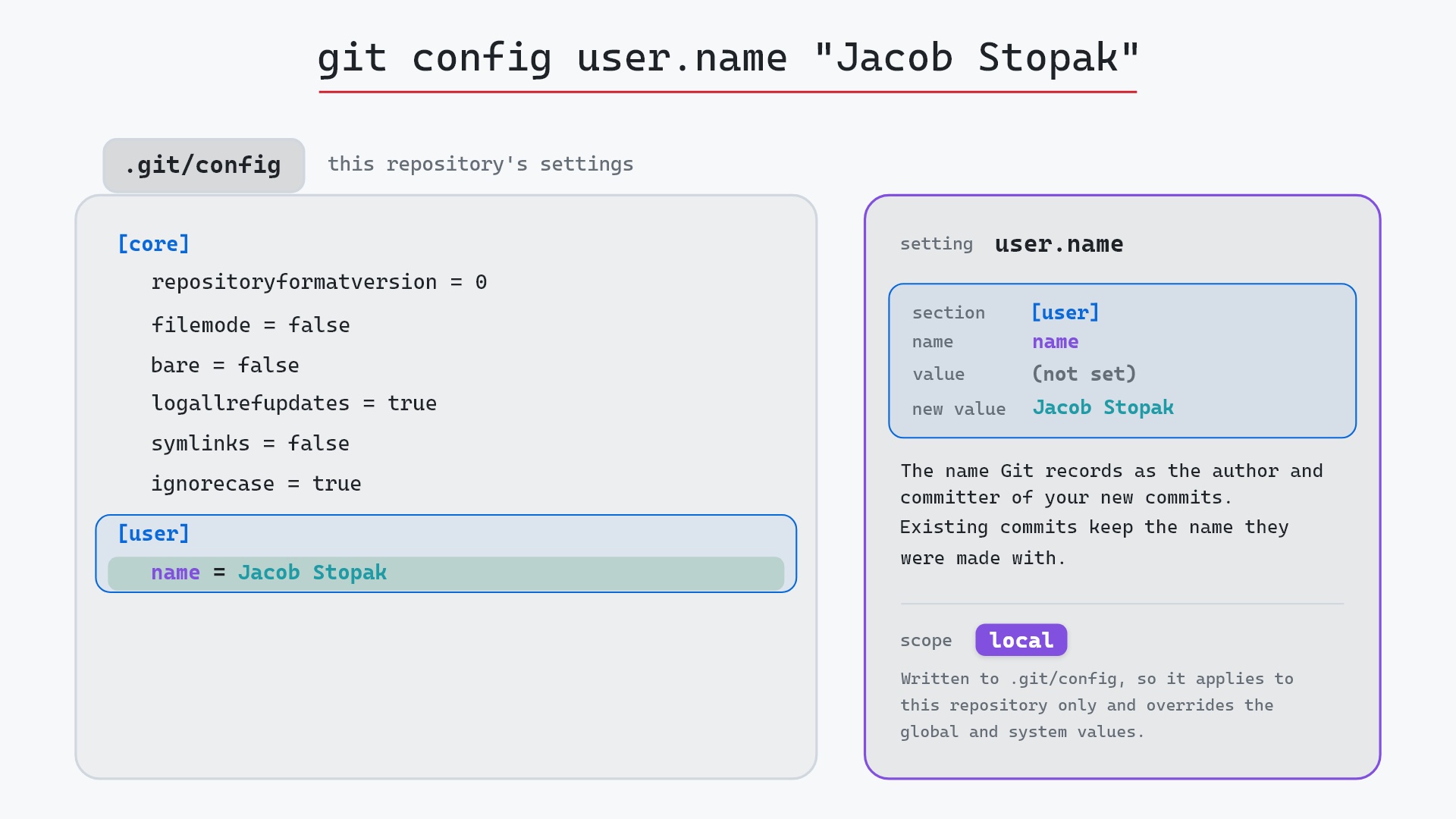
Our sample is a repository whose commits should carry your name. Here's git config user.name "Jacob Stopak", run inside it with no scope flag:
- Before:
.git/configholds only the[core]section thatgit initwrote, with settings such asrepositoryformatversion = 0andbare = false. - Git adds a
[user]section withname = Jacob Stopakto.git/config, souser.nameis now set to Jacob Stopak in the local scope. - Git puts this name on every new commit made in this repository, and it overrides whatever is set with
--globalor--system. Commits already made keep the name they were made with.
Before and after
The two commit graphs are identical. main and HEAD are still on 8c02d5b "Update dependencies", feature is still on 1117a34 "Add search tests", and git status still says ## main with nothing to report. git config edits a settings file, so no commit, branch or tracked file changes. The name only shows up on the next commit you make.
The raw git output, if you want to read along in text
git log --oneline --graph --all
before
* 1117a34 (feature) Add search tests
* e5869f0 Fix typo in search box
* fc19889 Add search box
| * 8c02d5b (HEAD -> main) Update dependencies
| * a0b2db3 Add user settings page
|/
* 96c4fc2 Fix header layout
* ae65976 Add login page
* 3e1ffe4 Add project skeleton
* 4114b2c Initial commit
after
* 1117a34 (feature) Add search tests
* e5869f0 Fix typo in search box
* fc19889 Add search box
| * 8c02d5b (HEAD -> main) Update dependencies
| * a0b2db3 Add user settings page
|/
* 96c4fc2 Fix header layout
* ae65976 Add login page
* 3e1ffe4 Add project skeleton
* 4114b2c Initial commit
Where Git's config files live
There are three levels you'll meet, each a separate file:
| scope | flag | file |
|---|---|---|
| system | --system | /etc/gitconfig on Linux and macOS, C:\Program Files\Git\etc\gitconfig with Git for Windows |
| global | --global | ~/.gitconfig (on Windows, C:\Users\<you>\.gitconfig), or ~/.config/git/config |
| local | --local | .git/config inside the repository |
Git reads them in that order, and a later one overrides an earlier one. So a local user.name beats a global one, which beats a system one. Our example wrote to .git/config, which is why it only affects the your_project repository. (There's also a fourth level, --worktree, for settings that apply to a single worktree, and git -c key=value <command> overrides everything for one command.)
To find out where a value is coming from, ask Git. Suppose you had also set a shorter name globally at some point:
$ git config --list --show-origin
file:C:/Users/jacob/.gitconfig    user.name=Jacob S
file:C:/Users/jacob/.gitconfig    user.email=jacob@initialcommit.io
file:.git/config                core.repositoryformatversion=0
file:.git/config                user.name=Jacob Stopak
Here user.name appears twice. The local one is listed last and wins, so commits in this repository say "Jacob Stopak". --show-scope prints the scope name instead of the file.
First-time setup
Most people set these once, globally, right after installing Git (check it's installed and on your PATH with git --version):
git config --global user.name "Jacob Stopak"
git config --global user.email "jacob@initialcommit.io"
git config --global init.defaultBranch main
git config --global core.editor "code --wait"
The name and email go into every commit as its author. Hosting services like GitHub match commits to accounts by email, so use one your account knows. init.defaultBranch (Git 2.28 and later) names the first branch in new repositories, and core.editor is the editor Git opens for commit messages when you leave off -m. Without it, Git falls back to your VISUAL or EDITOR environment variable, and then to vi.
Then use a local setting for the exceptions, like our example, or a work email in work repositories. If all your work repositories live under one folder, a conditional include saves repeating yourself:
[includeIf "gitdir:~/work/"]
    path = ~/.gitconfig-work
Reading, changing and removing settings
git config user.name                    # print the value in effect
git config --global user.name           # print the global value only
git config --list                       # everything in effect, all levels
git config --global --edit              # open ~/.gitconfig in your editor
git config user.name "New Name"         # set again to change it
git config --unset user.name            # remove it from the local file
git config --global --remove-section user   # remove the whole [user] section
A few details worth knowing:
- Running
git configwith a key and no value reads it. It prints nothing and exits with status 1 if the key isn't set. Defaults that Git uses internally aren't listed, only values someone set. - Without a scope flag, writing goes to
.git/configif you're in a repository. Outside one it fails, and--localoutside a repository fails withfatal: --local can only be used inside a git repository. --unset-allis for keys that can hold several values, likeremote.origin.fetchwhen it has more than one refspec. It removes every value of that one key, not several different keys.- Git 2.46 added subcommand spellings for the same operations:
git config get,git config set,git config unset,git config listandgit config edit. The older flag style above still works.
You can also edit the files by hand, since they're plain text. Using git config avoids typos in section names and quoting.
Settings Git writes for you
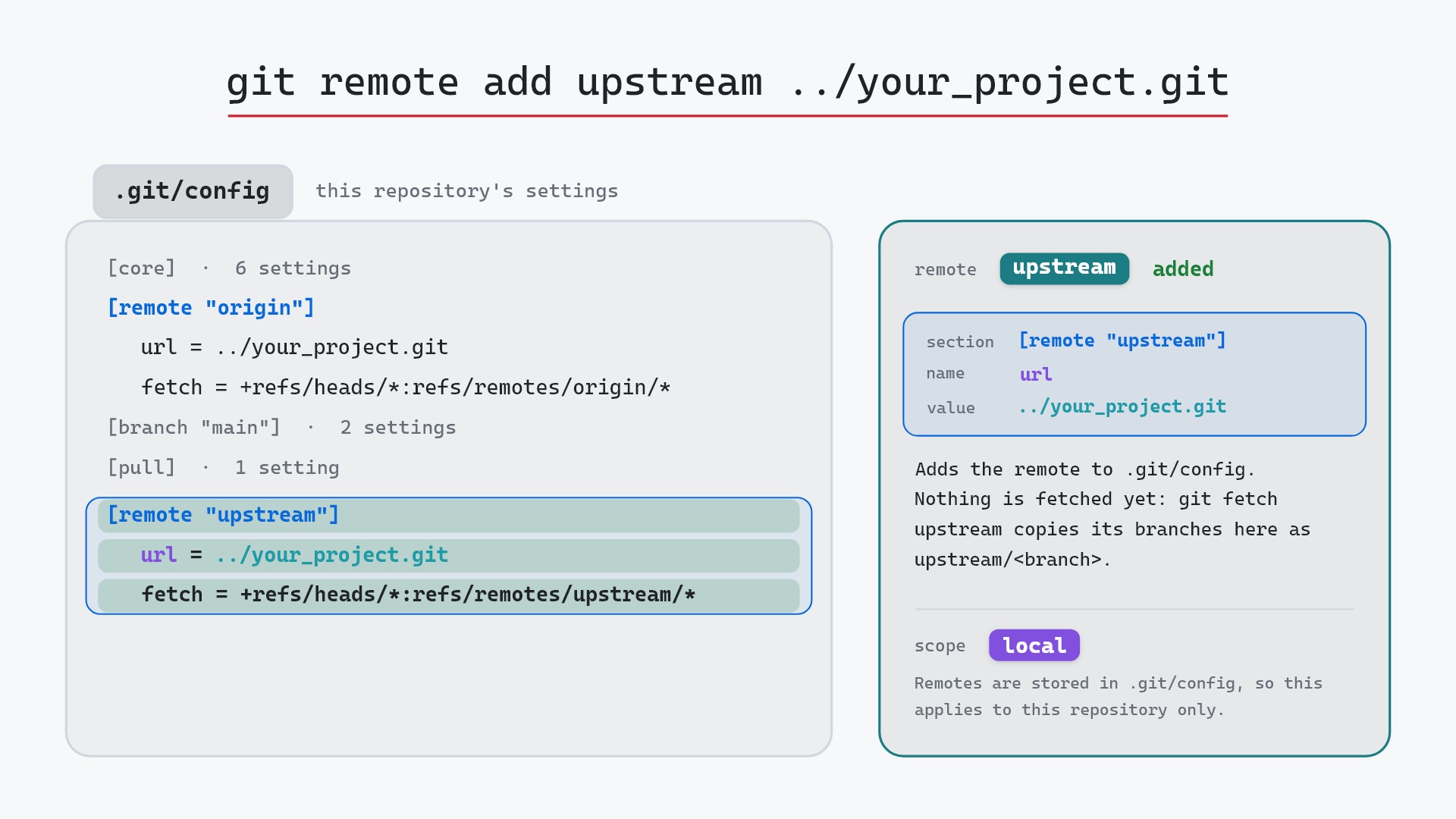
Open a cloned repository's .git/config and you'll find sections you never set:
[remote "origin"]
    url = git@github.com:user/your_project.git
    fetch = +refs/heads/*:refs/remotes/origin/*
[branch "main"]
    remote = origin
    merge = refs/heads/main
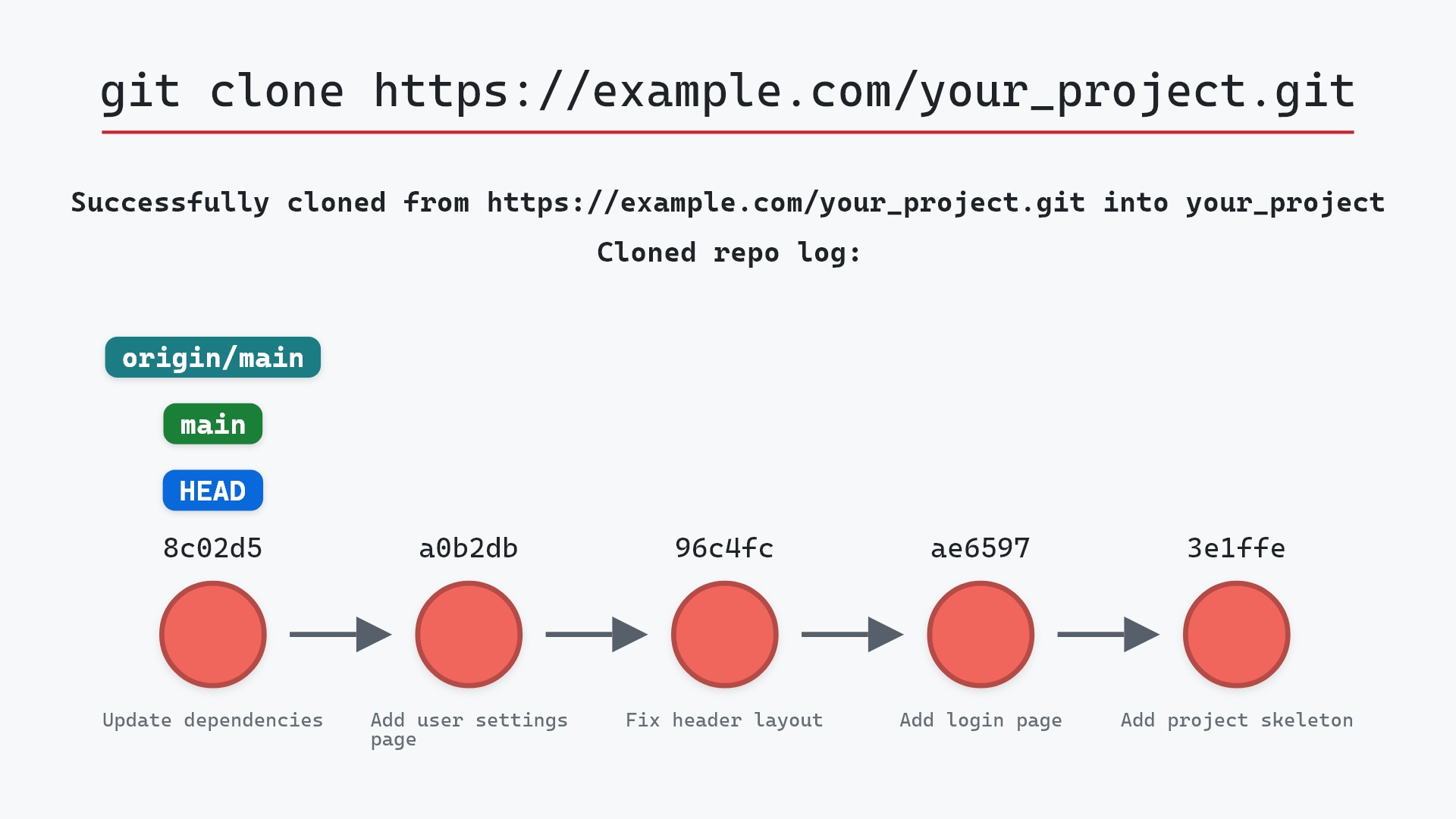
git clone and git remote add write the [remote] section, and git push -u or a tracking checkout writes the [branch] one. These are ordinary config values, so git config remote.origin.url reads the remote's address and git config --list shows them along with everything else.
Is it safe?
Safe git-sim pre-flight
writes 'user.name' to .git/config; no history or files change.
Changing a setting never alters history, the staging area or your files. The only lasting effect of a wrong value is on things you do afterward, like commits made with a typo in your name.
How to undo it
Remove the local value, and the global one (if any) applies again:
git config --unset user.name
Commits you made while the setting was in place keep that name. Changing it on existing commits means rewriting them. For the last commit, git commit --amend --reset-author --no-edit replaces the author with your current settings (a plain git commit --amend keeps the original author).
Try it on your repository
pip install git-sim
git-sim config user.name "Jacob Stopak"
git-sim shows the config file with the new line highlighted and which scope it lands in, without writing anything. git-sim config --list lays out the system, global and local levels side by side.
Common questions
Where is the Git config file?
There are several. The repository's own is .git/config, yours is ~/.gitconfig (or ~/.config/git/config), and the system-wide one is usually /etc/gitconfig. git config --list --show-origin prints which file each value came from.
How do I set my Git username and email?
git config --global user.name "Your Name" and git config --global user.email "you@example.com". Leave off --global inside a repository to set them for that repository only.
Which git config level takes precedence?
The most specific one. Local (.git/config) overrides global (~/.gitconfig), which overrides system, and git -c on the command line overrides all of them.
Does changing user.name change my old commits?
No. The name is copied into each commit when it's made. Only new commits use the new value.
Summary
In this article, we watched git config user.name "Jacob Stopak" add a [user] section to .git/config while the commit graph stayed exactly as it was, looked at the system, global and local levels and how they override each other, and covered reading, changing and removing settings.
Next steps
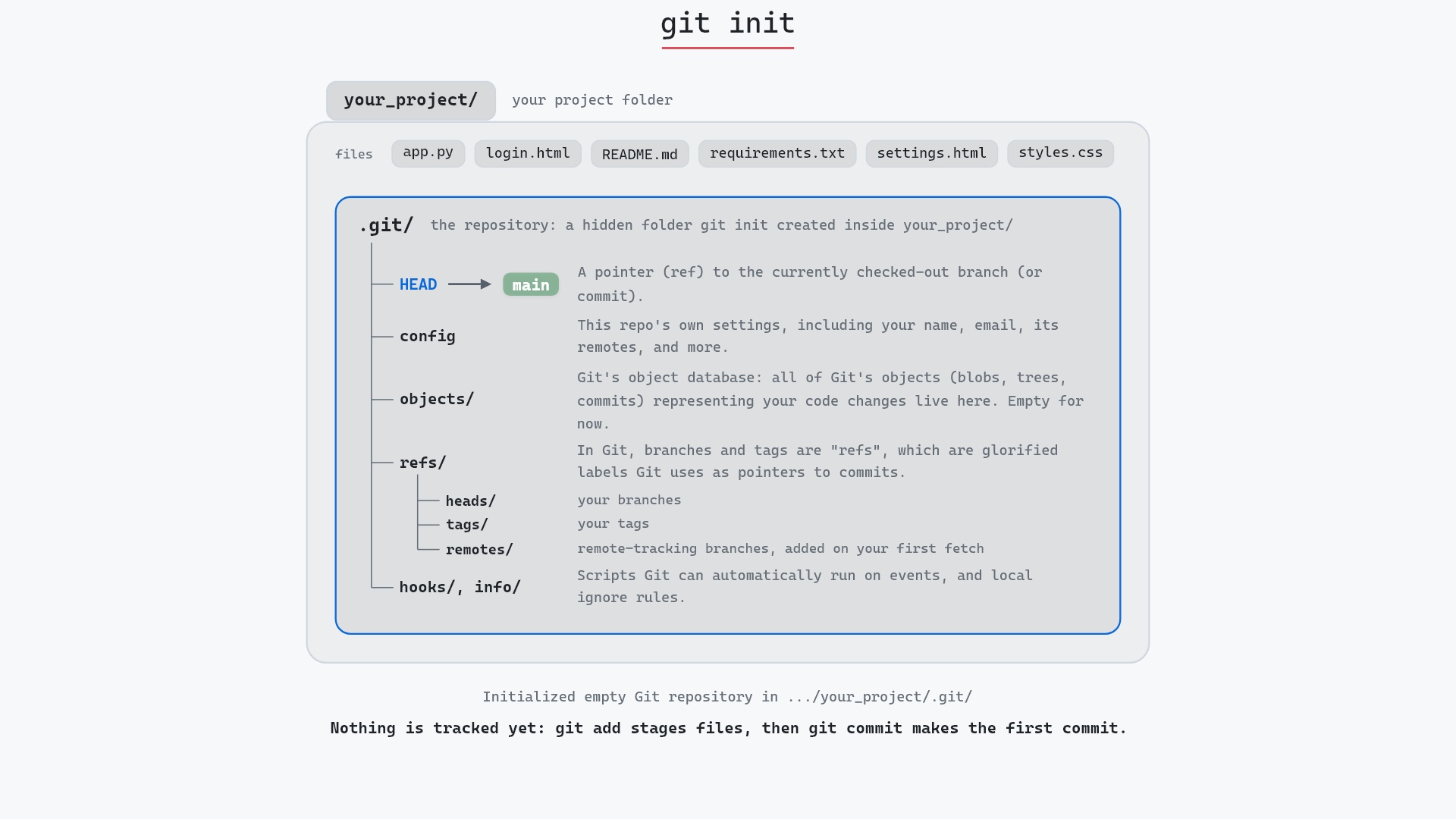
With your name set, git commit will stamp it on your work. git init and git clone both create the .git/config file this command edits.
Related commands
- git init, which writes the first
.git/config - git clone, which adds the
originremote to it - git commit, where
user.nameanduser.emailend up - git remote add, another command that writes config
- git push -u, which records a branch's upstream in config
- git commit --amend, to fix the author on your last commit
Get Git command tips by email, starting with git config.