Git commands
How to stop tracking a file in Git without deleting it
git rm --cached: stop tracking a file, keep it on disk
How to use this page
- sliderDrag it to move the graph from before the command to after it.
- ▶ / ❚❚Play or pause the command, start to finish, on a loop.
- Before · AfterJump straight to either end.
- ← → · spaceStep through a multi-step command; space toggles Before / After.
- APlay or pause from the keyboard (the page opens playing). Any manual input takes over.
- hoverA commit shows its message, author, date and parents, with its history highlighted.
- clickCopies the commit sha.
- ctrl + wheelZoom around the cursor (pinch on a trackpad). Double-click resets the view.
- EscStop playback, reset the view, close this menu.
- shareThe Share button copies a link to this graph, copies it as an image, downloads PNG/SVG/page, or posts it. #before, #after or #step=N in the link pins the state.
The Animated Git Cheat SheetFree · Customize it · Download it · Print it
git-sim visually simulates any Git command in your own repos - from your terminal, IDE, or AI.
Table of Contents
- Introduction
- What is git rm --cached?
- Watch it happen
- Before and after
- Is it safe?
- How to undo it
- Useful forms
- Try it on your repository
- Common questions
- Summary
- Next steps
- Related commands
Introduction
If you're like me, at some point you've run git add . and swept up a file that never belonged in the repository, like a .env with a password in it or a folder full of build output. You want Git to forget about the file, but you still need it on your machine. That's the job of git rm --cached.
In this article, we'll:
- Watch
git rm --cached .envsplit one file into two states: untracked on disk, and deleted in the staging area - See what
git statussays afterwards, and what the next commit will do - Cover
.gitignore, why the secret is still in your history, and how to untrack a whole folder
What is git rm --cached?
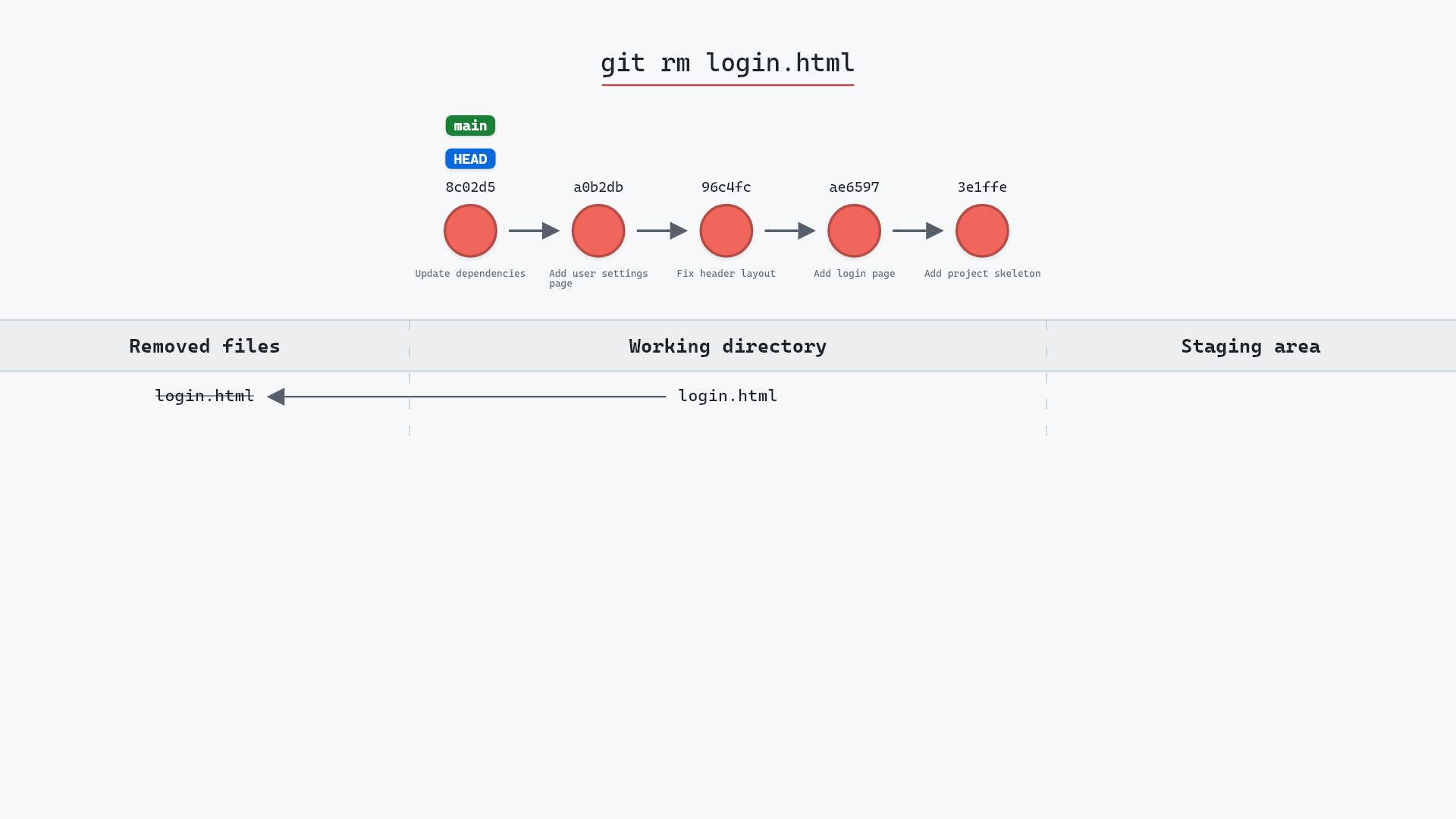
Plain git rm deletes a file from your working directory and stages the deletion. git rm --cached <file> does only the second half. It removes the file from the staging area (the index, which is where the "cached" in the name comes from) and leaves the file on disk exactly as it was.
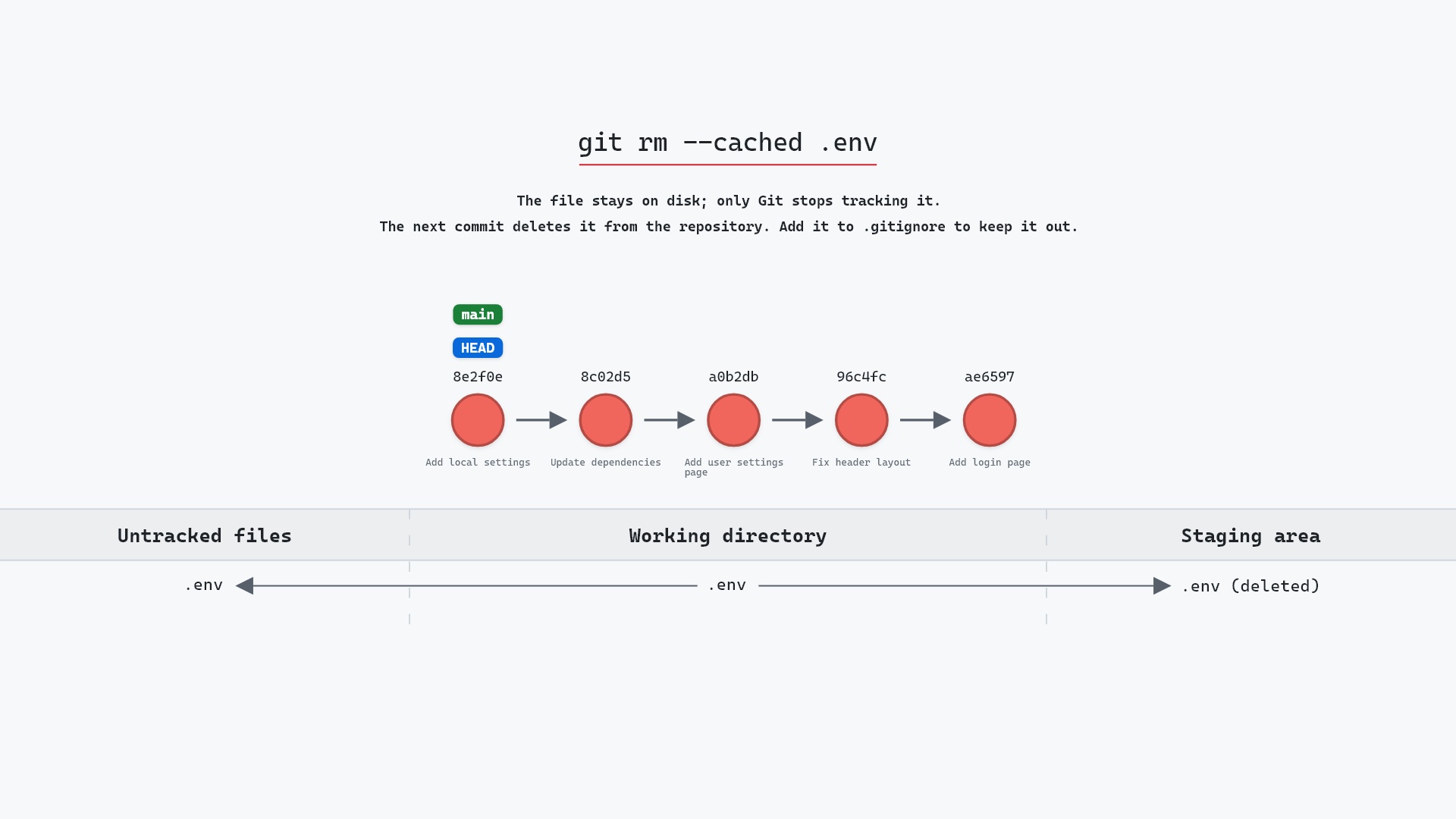
The result is a file that Git will delete from the repository on your next commit, while your copy stays put as an untracked file.
Watch it happen
Our sample repo has a .env file with a local secret, committed by mistake. The commit "Add local settings" (8e2f0e2) on main added it. Here's git rm --cached .env:
- Before:
.envis tracked, committed in8e2f0e2, and unchanged, so the working directory and staging area are clean. - Git removes
.envfrom the index but leaves the file on disk. The deletion is staged, so the next commit deletes it from the repository, and the file on disk is now untracked (.gitignoreis how you keep it that way).main,HEADand every commit stay where they were.
Before and after
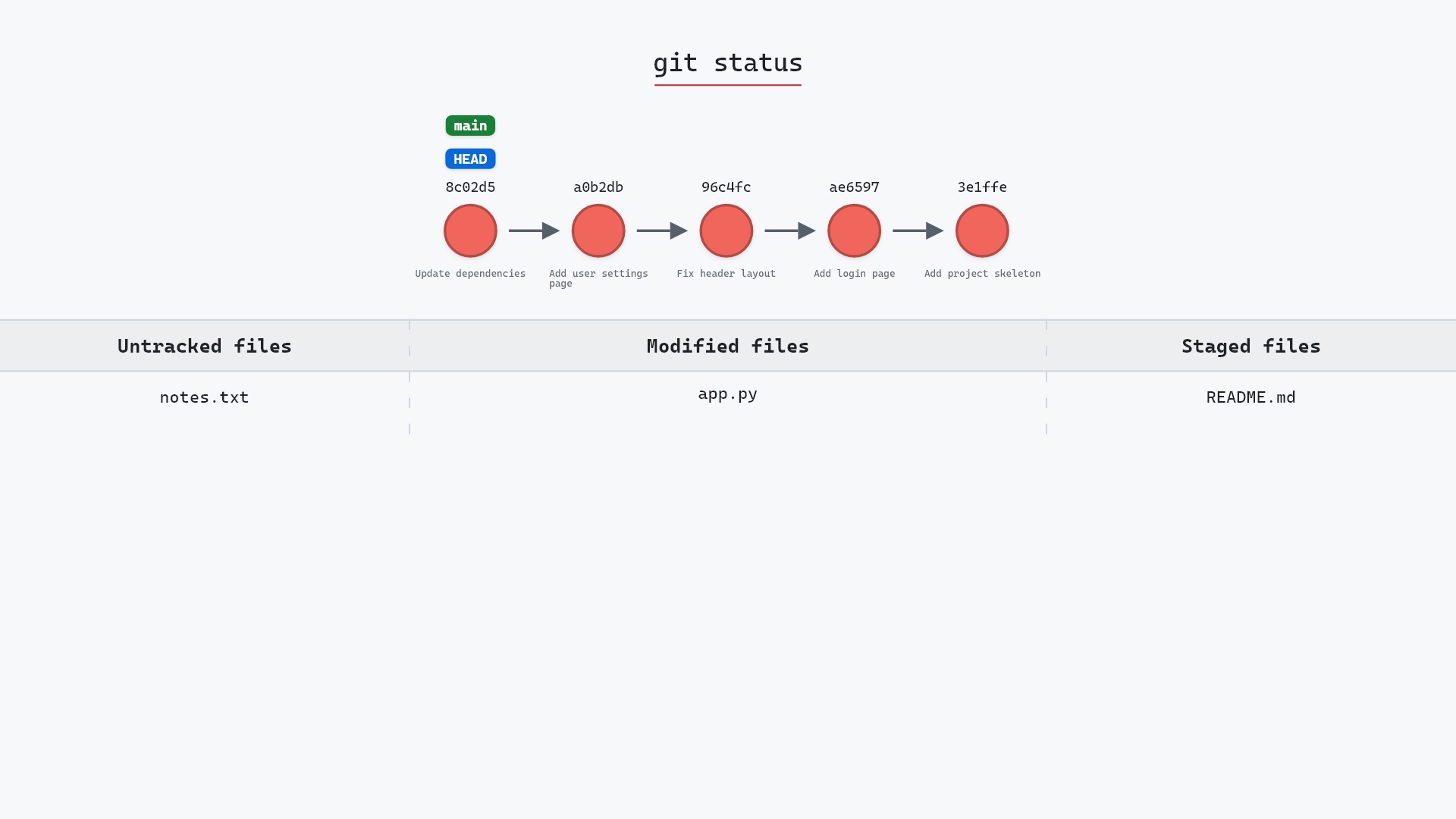
git status --short before the command is empty. After it, .env shows up twice:
D  .env
?? .env
The D in the first column is a staged deletion. The ?? means untracked. Both describe the same file, one from the point of view of the staging area and the other from your working directory. The command itself prints a single line, and the log doesn't change at all:
The raw git output, if you want to read along in text
git log --oneline --graph --all
before
* 8e2f0e2 (HEAD -> main) Add local settings
* 8c02d5b Update dependencies
* a0b2db3 Add user settings page
| * 1117a34 (feature) Add search tests
| * e5869f0 Fix typo in search box
| * fc19889 Add search box
|/
* 96c4fc2 Fix header layout
* ae65976 Add login page
* 3e1ffe4 Add project skeleton
* 4114b2c Initial commit
after
* 8e2f0e2 (HEAD -> main) Add local settings
* 8c02d5b Update dependencies
* a0b2db3 Add user settings page
| * 1117a34 (feature) Add search tests
| * e5869f0 Fix typo in search box
| * fc19889 Add search box
|/
* 96c4fc2 Fix header layout
* ae65976 Add login page
* 3e1ffe4 Add project skeleton
* 4114b2c Initial commit
what git printed
rm '.env'8e2f0e2 is still the tip of main. Nothing has been committed yet. When you do commit, that new commit will not contain .env, and every commit after it won't either, unless someone adds it back.
Is it safe?
Safe git-sim pre-flight
Removes the paths from the index only; files stay on disk.
For your own copy, yes. The file never leaves your disk. There is one side effect to keep in mind, though: when a teammate pulls the commit that removes .env, Git deletes their .env, since from their repository's point of view a tracked file went away. If they need the file, they'll have to recreate it (or copy it from the old commit with git show 8e2f0e2:.env).
So the full fix usually has three parts:
echo ".env" >> .gitignore
git rm --cached .env
git commit -m "Stop tracking .env"
The gitignore entry is what stops the file from being swept up again by the next git add .. Without it, .env shows up as untracked in every git status and is one careless add away from coming back.
The bigger catch is history. 8e2f0e2 still contains .env, and so does every clone and every fork that has that commit. If the file holds a real secret, treat it as leaked: rotate the password or key first. Removing a file from history is a different job that rewrites every commit since the file appeared. GitHub's guide to removing sensitive data from a repository walks through it with git filter-repo.
--cached goes back to Git's first commit. In Linus Torvalds' original code the index was called the "directory cache", and the command that put files into it was update-cache. I spent a lot of time in that code while writing Baby Git, so the flag name has always read to me as "the index only" rather than anything to do with caching.
How to undo it
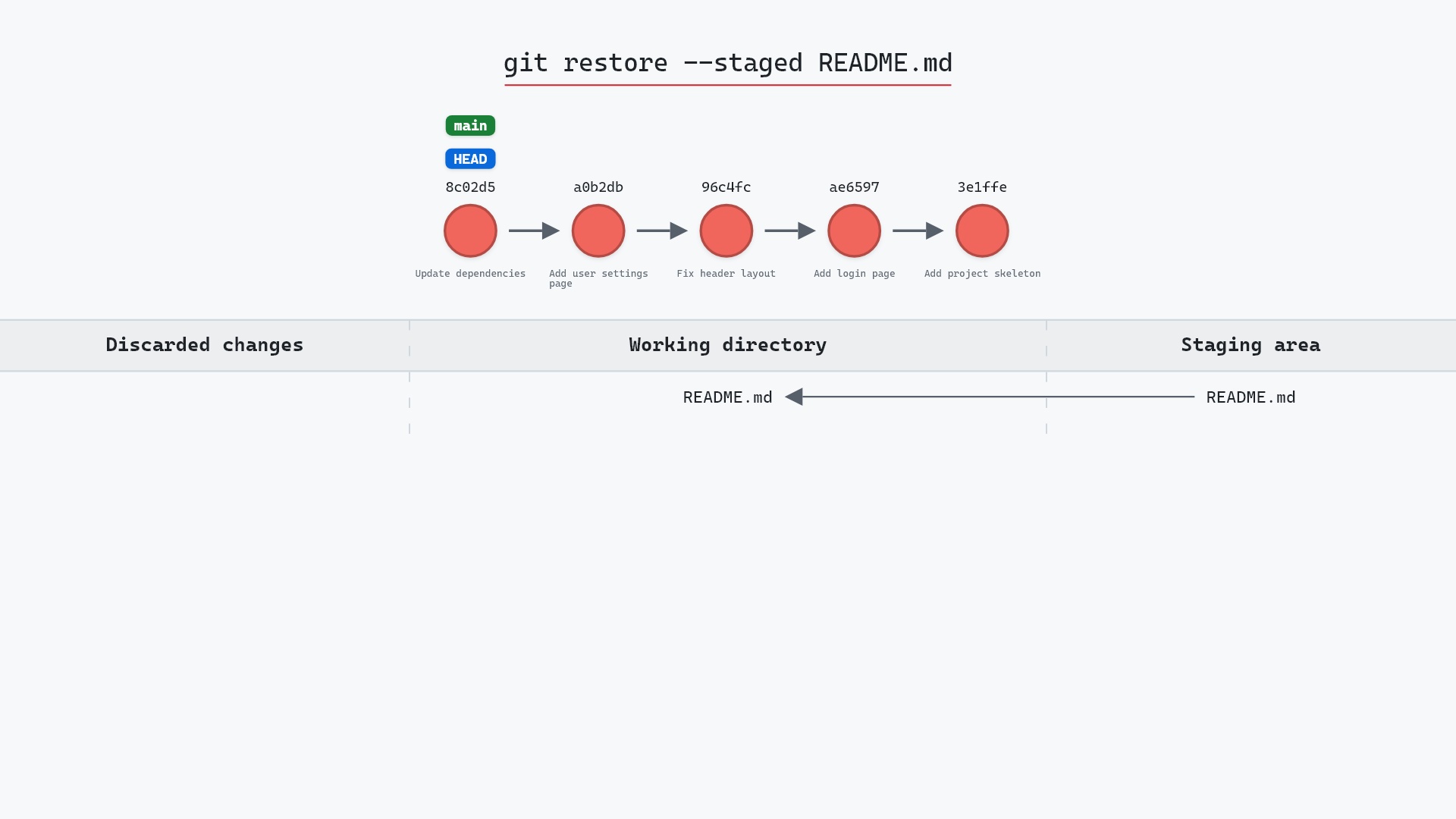
Before you commit, put the file back in the staging area from HEAD:
git restore --staged .env
That copies the committed version of .env into the index again, and git status goes back to clean. git reset HEAD .env does the same, and works on Git versions older than 2.23. Here's git restore --staged doing that job for a different file:
After you've committed, git add .env and a new commit start tracking it again. Your working copy was never touched, so there's nothing to recover from disk.
Useful forms
git rm --cached -r build/untracks a whole folder. Without-r, Git refuses and tells you it won't remove a directory recursively without it.git rm --cached -n -r build/is a dry run that lists what would be untracked without doing it.git rm -r --cached .followed bygit add .re-applies a.gitignoreyou just edited to everything at once. Look overgit statusbefore committing, since it stages every other change too.git ls-fileslists every tracked file, which is handy for spotting what else slipped in.
The --cached option in the git rm documentation is short, but it's the definitive word on what it touches.
Try it on your repository
pip install git-sim
git-sim rm --cached .env
git-sim draws where the file goes, on disk and in the staging area, and doesn't change your repository.
Common questions
Does git rm --cached delete the file?
No. It removes the file from the staging area only, so the next commit drops it from the repository. The file stays in your working directory as an untracked file.
How do I stop tracking a file that's already committed?
Add it to .gitignore, run git rm --cached <file>, and commit. From then on Git ignores it. Earlier commits still contain it.
Does git rm --cached remove a file from history?
No. Every commit made before the removal still has the file. To erase it from history you need a history-rewriting tool such as git filter-repo, and a force push. If the file held a secret, rotate the secret regardless.
How do I untrack a whole folder?
Add -r: git rm --cached -r <folder>. Add a matching <folder>/ line to .gitignore so it stays untracked.
Will git rm --cached delete the file for my teammates?
When they pull the commit that removes it, yes: Git deletes their tracked copy (if it has local edits, the pull stops and asks them to deal with those first). Tell them before you push if they need to keep a local version.
Summary
In this article, we watched git rm --cached .env leave .env on disk as an untracked file while staging its deletion, saw git status report both at once, and covered .gitignore, the copy that stays in history, and -r for folders.
Next steps
git rm covers the plain form that deletes the file too. git status explains the lists .env moved between.
Related commands
- git rm, which deletes the file as well as untracking it
- git restore --staged, to put the file back in the staging area before you commit
- git status, where the staged deletion and the untracked file both show up
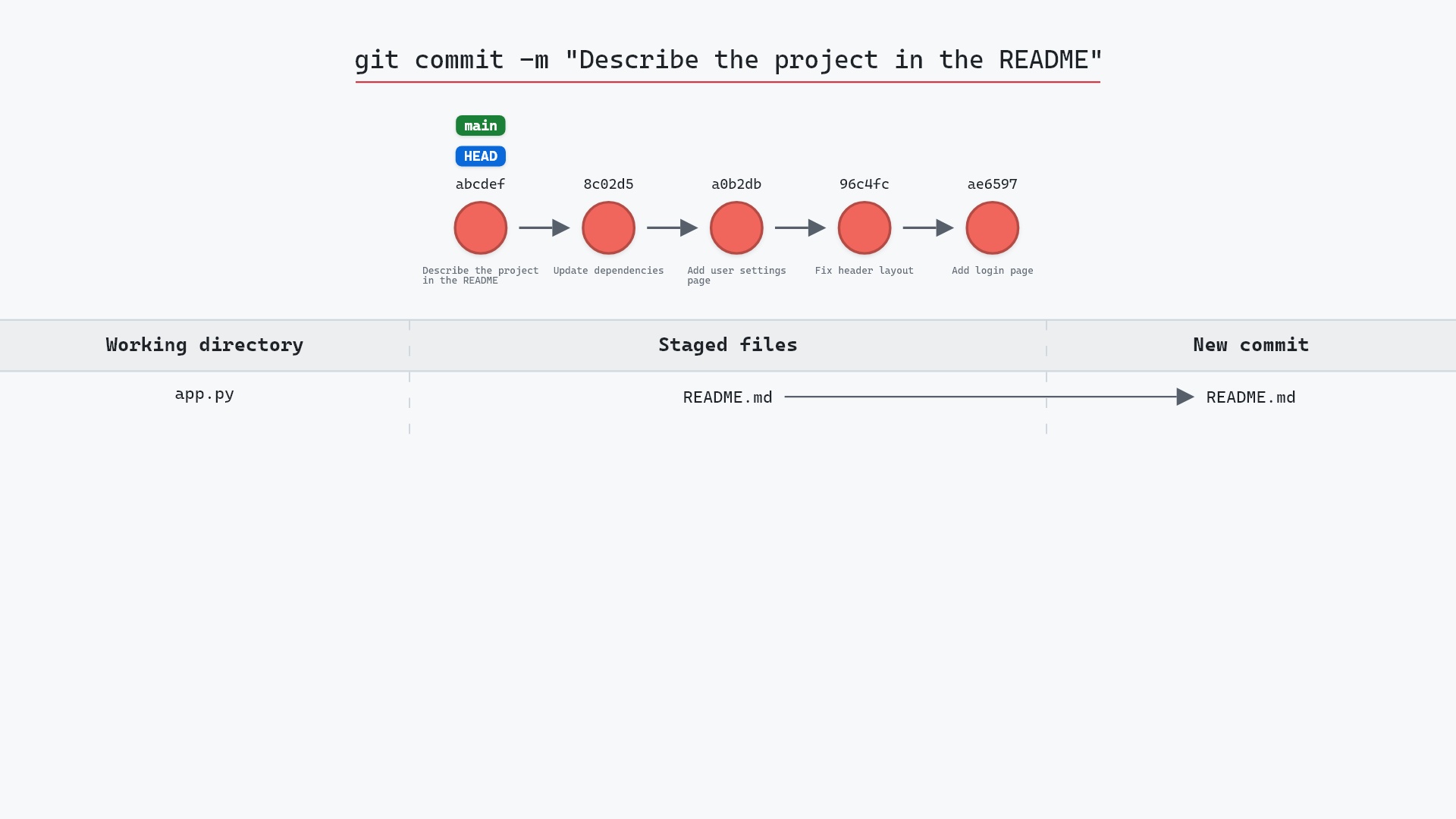
- git commit, which actually removes the file from the repository
- git clean, for deleting untracked files you don't want on disk either
- git reset HEAD file, the older way to undo a staged change
Get Git command tips by email, starting with git rm --cached.